
SpotsPOS Retail
Turn the screen around. Let your customer tip and sign.
SpotsPOS turns the iPad or iPhone on your counter into a customer-facing POS screen at the moment it matters. Your customer sees the total, picks a tip, signs to confirm and hands it back. It works the same in SpotsPOS Retail and SpotsPOS Repair.
Free for 14 days. No credit card needed.
Built for the few seconds the customer holds it.
Plain words and one question at a time, so any customer gets through it in a few seconds.
-
Add a tip?
The customer sees the total and chooses a tip, enters a custom amount, or taps No Tip. No awkward conversation.
-
Sign to confirm
The customer signs on the screen to confirm the amount, with a Clear button if the first try goes wrong.
-
A clear finish
A thank you screen asks the customer to hand the device back to your team, so nobody is left holding it.
-
Signatures on sales
Ask for a signature on any sale. It is optional, so you can skip it for a pack of gum.
-
Signed repairs
In SpotsPOS Repair the customer signs the repair at drop-off, or you choose to sign later.
-
Tips in your reports
Tips show on each sale and as Total Tips on the end of day receipt, so payouts are easy.
How the customer-facing checkout works
-
Build the sale
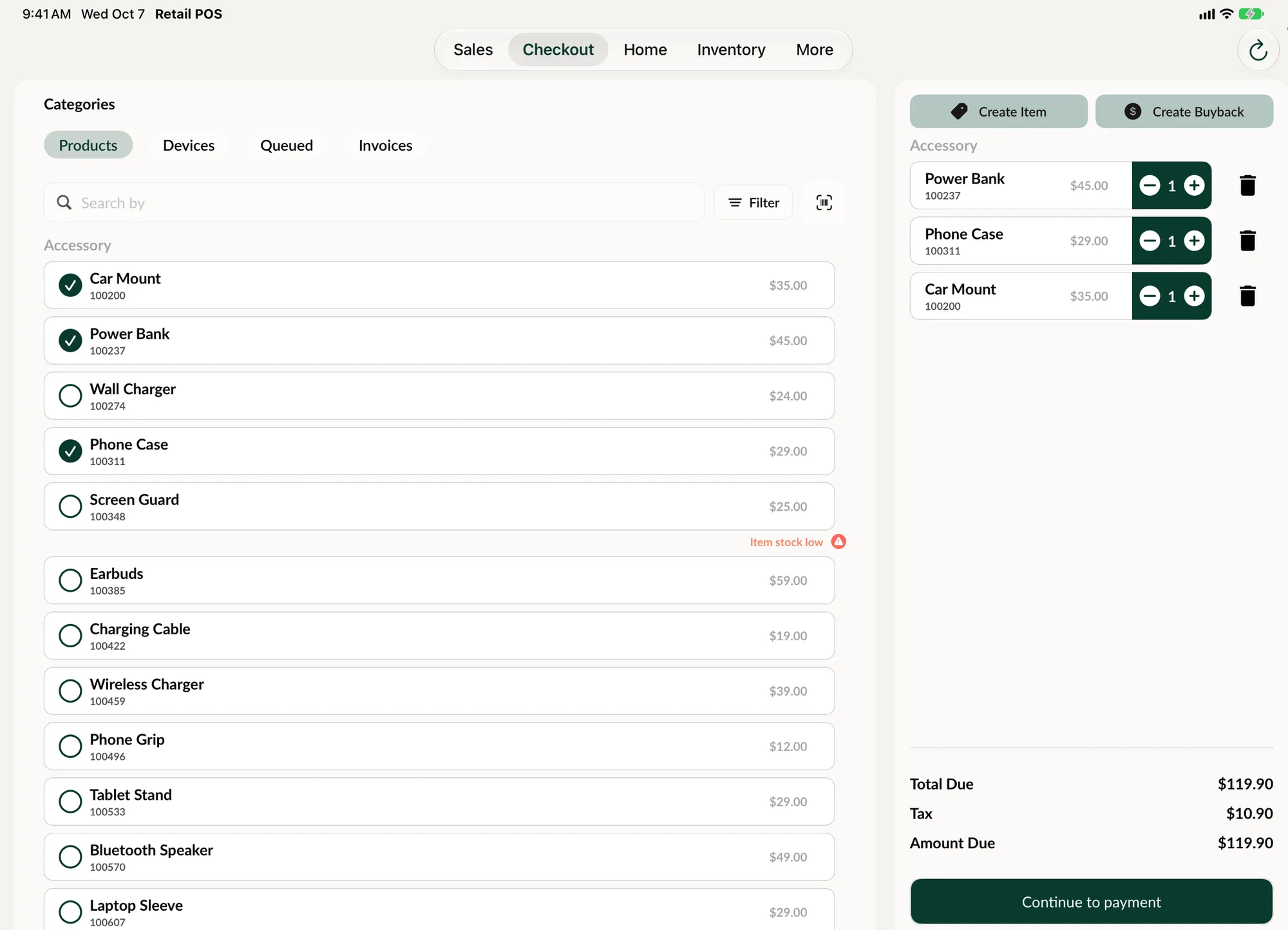
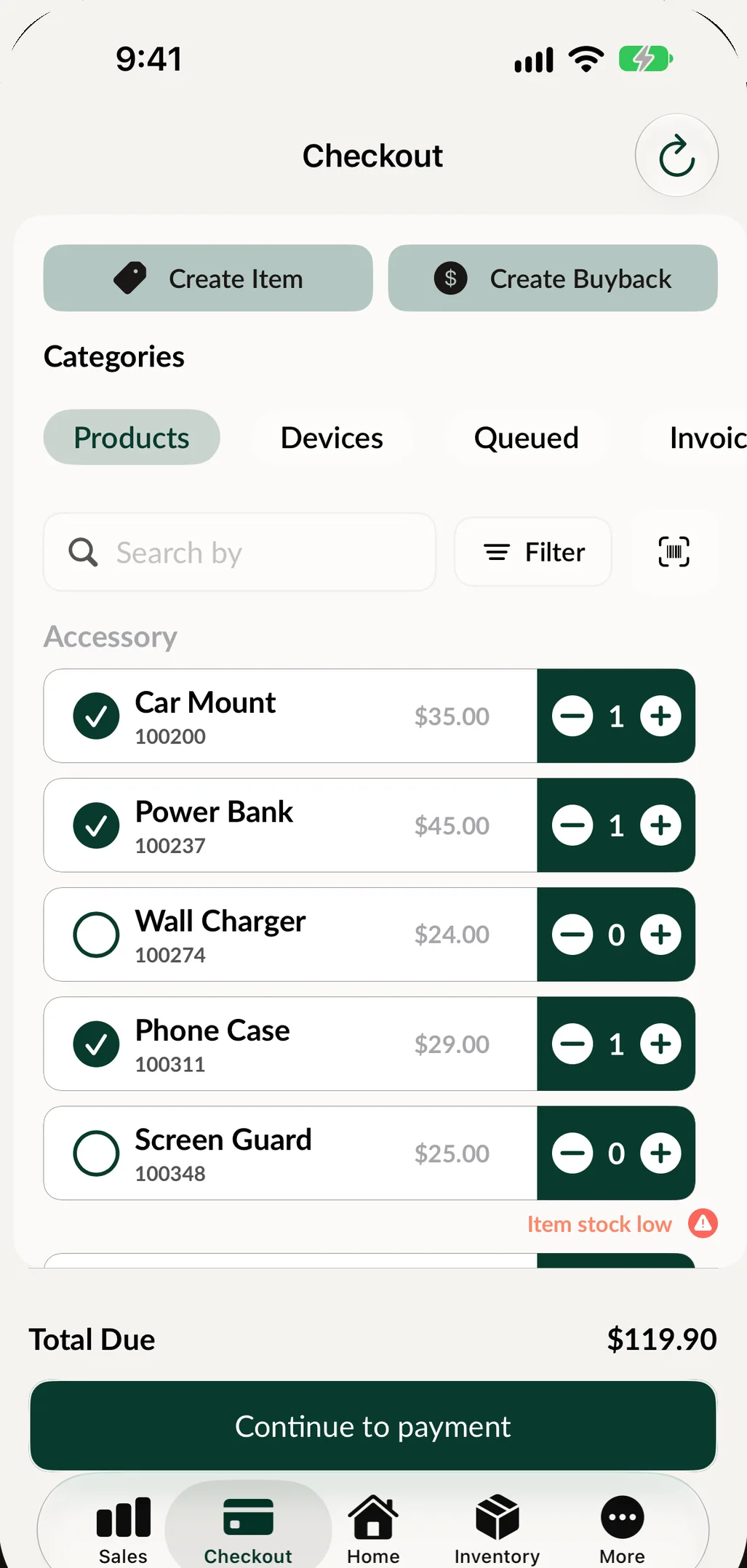
Scan or search the items, add any repair or order, and link the customer. The sale overview shows the pre-tax total, discount, tax and amount due.
-
Hand over the screen
Turn the iPad or iPhone toward the customer. They see the total and the question: add a tip?
-
The customer chooses and signs
They pick a tip, type a custom amount or choose No Tip, then sign below to confirm. If they change their mind, they can go back to the sale.
-
Take it back and finish
A thank you screen asks them to hand the device back to the team. You finish the payment, and the tip is part of the sale and your end of day.
Signatures that stay with the record.
A signature is your proof that the customer saw and agreed. SpotsPOS collects them where they matter: on a sale when you request one, on a repair ticket at check-in, and on the terms a customer accepts for a layaway.
- Optional signature on any sale, added in one tap
- Repair signature at drop-off, or sign later before the job moves on
- Your terms and conditions printed on repair tickets and sales receipts
Why a customer-facing POS screen beats asking out loud
Asking "do you want to leave a tip?" across the counter is uncomfortable for everyone. Showing the question on a screen is not. The customer decides in private, in a couple of seconds, and the amount is recorded on the sale without anyone typing it in. For shops where tips are part of the job, like a quick repair done while the customer waits, that adds up over a week.
Signatures work the same way. Instead of a paper slip that ends up in a drawer, the customer signs on the screen and the signature is kept with the sale or the repair.
Use the device you already have
You do not need a separate screen to start. The same iPad or iPhone you ring the sale up on is handed to the customer for the tip and the signature, then handed back. An iPad on a stand at the counter works well for this, and the hardware guide lists the printers, scanners and cash drawers that go with it.
Keep the rest of the app out of reach
A device that customers touch should only show what they need. Store Mode limits what is available on the device: some administrative features are hidden or disabled, and an employee code is required to create sales, repairs and inventory counts. Admin features ask for an admin PIN. Read more about employee permissions.
Tips you can account for
Every tip is part of its sale, so it shows in the sale overview and on the receipt. When you close the register, the end of day receipt lists Total Tips next to cash, card, debit and other sales, which makes paying tips out at the end of a shift simple. See how payment processing and reports fit together.
Terms your customers actually see
Write your own terms and conditions for sales, repairs, layaways and customer orders. In Printer Settings, choose whether the terms print on repair tickets, sales receipts or both, with a line for the customer to sign. Receipts and reports can print in English or Spanish, so every customer can read what they are signing.
Tips and signatures questions
Can customers add a tip on the iPad at checkout?
Yes. Hand the iPad or iPhone to the customer and they see the total with the question Add a tip?. They can pick a tip, enter a custom amount or choose No Tip, then sign to confirm.
Do I need a separate customer display?
No. The same iPad or iPhone you use at checkout is turned toward the customer for the tip and signature, then handed back. An iPad on a stand at the counter works well for this.
Can I capture a customer's signature on a sale?
Yes. Turn on Request signature for the sale and ask the customer to sign on the screen. It is optional, so you can skip it whenever it is not needed.
Do tips show up in my end of day report?
Yes. Each sale shows its tip amount, and the end of day receipt shows Total Tips alongside your cash, card, debit and other sales.
Can customers sign for a repair when they drop off a device?
Yes. In SpotsPOS Repair the customer signs the repair at check-in. If they cannot sign right then, choose Sign Later and SpotsPOS asks for the signature before you move forward with the repair.
Let your customers tip on SpotsPOS.
Ring up a sale, turn the screen around and see how quick it is.
Free for 14 days. No credit card needed.