
SpotsPOS Retail
POS sales reports you will actually read.
SpotsPOS turns every sale into reports you can use the same day: today's sales as they happen, a guided end of day close, profit by period and monthly goals, on your iPhone or iPad.
Free for 14 days. No credit card needed.
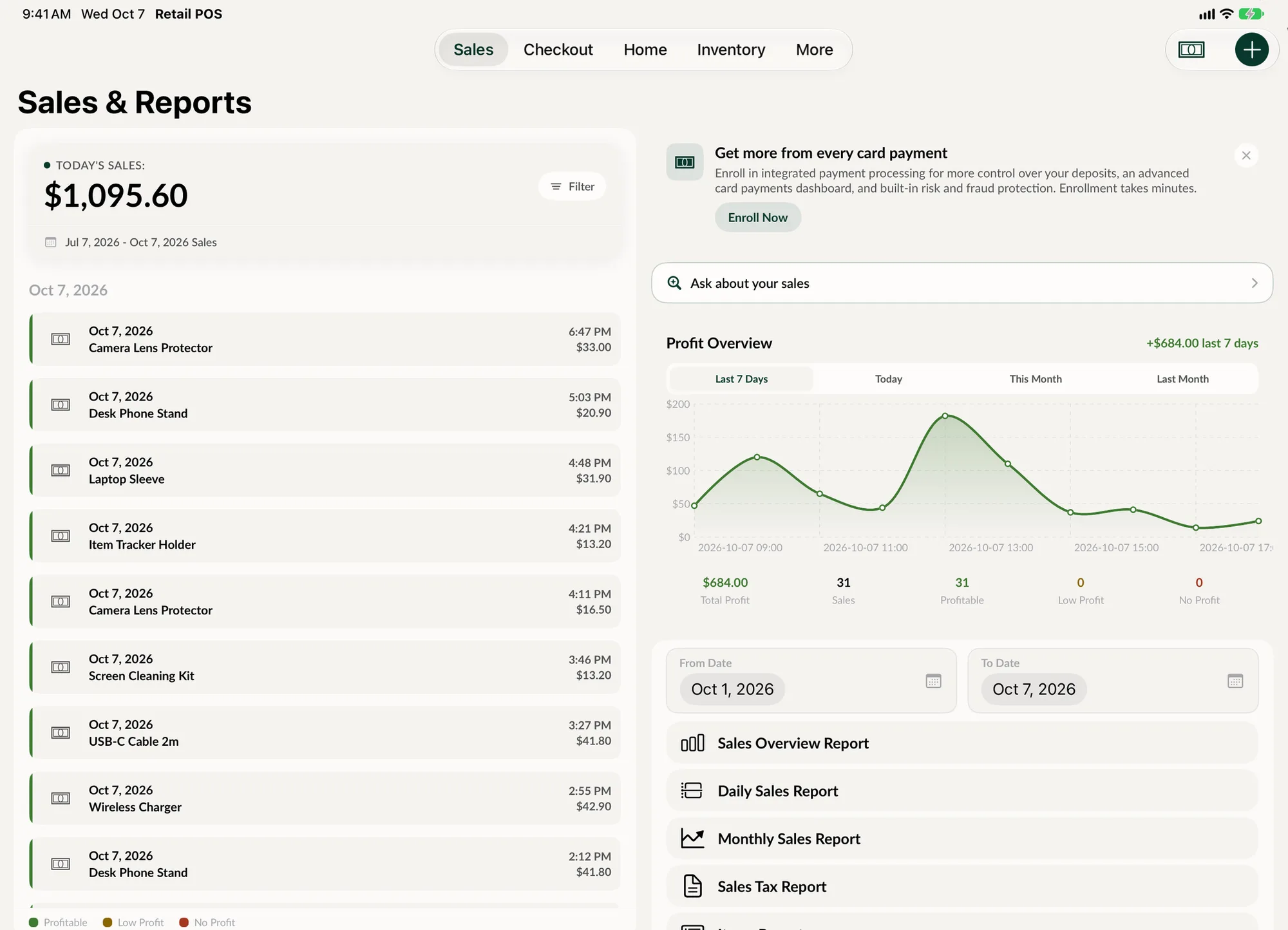
Every number your shop runs on
Sales and Reports has three tabs: Sales, Reports and Graphs. Here is what lives behind them.
-
End of day close
Count the drawer, check it against what the register should have, note any difference and print the end of day receipt.
-
Profit Overview
Total profit for today, the last 7 days, this month or last month, with each sale marked profitable, low profit or no profit.
-
Sales and tax reports
Sales overview, daily and monthly sales, and a sales tax report ready for whoever files your taxes.
-
Sales by employee
Employee sales and employee repairs reports, by day or by month, so you know who sold what.
-
Inventory reports
Items, low stock items and total inventory cost, plus an inventory count report after every count.
-
Business Health
Revenue, trends and your monthly repair and sales goals on one screen, by day, week or month.
What sales reports does a small shop really need?
Most owners check three things: how much came in today, whether the drawer matches, and whether the month is on track. SpotsPOS answers each one without a spreadsheet, and the full list of POS sales reports is there when your accountant asks.
Today's sales, as they happen
The Sales tab shows today's sales at the top and every transaction below it. Tap a sale to link it to a customer or a repair, print or email the receipt, or void it. Filter by date, or step back to a 3, 6 or 12 month view. Sales and Reports also shows new customers this month and Growth Insights, and the Graphs tab turns the same numbers into charts.
The reports list
Under Reports you will find the Sales Overview, Daily Sales, Monthly Sales and Sales Tax reports, the Items report, the Low Stock Items report, the Total Inventory Cost report, the Employee Sales and Employee Repairs reports and your End of Day reports. If you also run repairs on SpotsPOS Repair, the Store Repairs and Monthly Repair reports sit in the same list. Whatever language your team works in, you can choose the language used on receipts and reports.
Register closing without the guesswork
Closing the register is where small differences turn into long nights. The End of Day overview shows the sales summary, total sales and every money in or money out entry for the shift: change added to the drawer, cash taken out for a supplier, petty cash. Then you count.
The Count Helper lets you tap each bill and coin to add its quantity, or type the count by hand. SpotsPOS shows what the cash register should have. If the count does not match, you write a short note with the reason before you close, so the difference is explained the next morning instead of forgotten. Print the end of day receipt for the binder if you keep one. Every closed day is saved under End of Days.
Closing the register reads the totals from the server, so it needs an internet connection. If the connection is down, the app tells you and you can close as soon as you are back online. See offline mode for what still works without internet.
Profit, not just sales
The Profit Overview uses the cost of what you sold to show total profit for today, the last 7 days, this month or last month. Each sale is marked profitable, low profit or no profit, so a discount that went too far stands out. The graph and trends appear once you have sales on a few different days.
Costs come from your inventory, and purchase orders adjust the average cost when you receive stock. Keeping inventory current keeps profit honest.
Business Health and monthly goals
Set a monthly sales goal, and a repair goal if you take repairs. Business Health shows revenue for the day, week or month, the average per day, and the change against the previous period. Your goals show as a percentage complete, marked Achieved when you hit them. Popular Times shows your busiest hours and a live traffic projection once there are a few days of activity, which helps when you build the schedule.
If you would rather ask than look, Spots Intelligence answers questions like "How much did we sell this week?" or "This week's sales by payment type" from the data on your device.
How a day closes in SpotsPOS
-
Open the register
Open the register at the start of the shift. Any money in or money out during the day is recorded against it.
-
Sell as usual
Every sale, return and void lands in Sales right away, with the employee, payment type and tax attached.
-
Count the drawer
Open End of Day, tap through the Count Helper and compare the total with what the register should have.
-
Explain any difference
If the count is off, add an end of day note with the reason. Then close and print the receipt if you want one.
-
Check the trend
Glance at Business Health to see how the day moved the week and the month toward your goals.
A recap of the register, any time
The Register recap shows sales since the register opened, compared with the same hours last week. You also see sales by day, the best day, top sellers and sales by employee, with voided sales listed apart.
- Compared with the same hours last week
- Top sellers and sales by employee
- Voided sales shown on their own
Questions about sales reports
How do I do an end of day report on my POS?
Open Sales and Reports and tap Close Register. Count the drawer with the Count Helper, add a note if the count does not match what the register should have, and close. The report is saved under End of Days and you can print a receipt.
Can I see profit, not just sales?
Yes. Profit Overview uses the cost of each item sold to show total profit for today, the last 7 days, this month or last month, and marks each sale as profitable, low profit or no profit.
Can I run a sales tax report?
Yes. The Sales Tax report is in the Reports list next to the daily and monthly sales reports. Tax groups let you name each tax the way it should appear on reports.
Can I hide sales numbers from employees?
Yes. In Employee Limitations you can hide Sales for any employee, and they see that the feature is restricted. Each person signs in with their own PIN, so the setting follows them. See employee permissions.
Are all reports included in every plan?
Everyday sales and end of day reports are part of every plan. Advanced reporting and low stock reports are included from the Essential plan, and reporting by location is part of Enterprise. See pricing for the details.
Can I export my sales?
Yes. The Export Tool in Settings exports sales, customers, inventory and devices, so you can work with the data in a spreadsheet.
Close tonight's register on SpotsPOS.
Set up your store today and see your first report before closing time.
Free for 14 days. No credit card needed.