
SpotsPOS Employee Manager
POS employee permissions that fit a small team.
Decide what each person can see and do in SpotsPOS. Hide sales from a new hire, keep inventory costs to managers, and put admin settings behind a PIN.
Free for 14 days. No credit card needed.
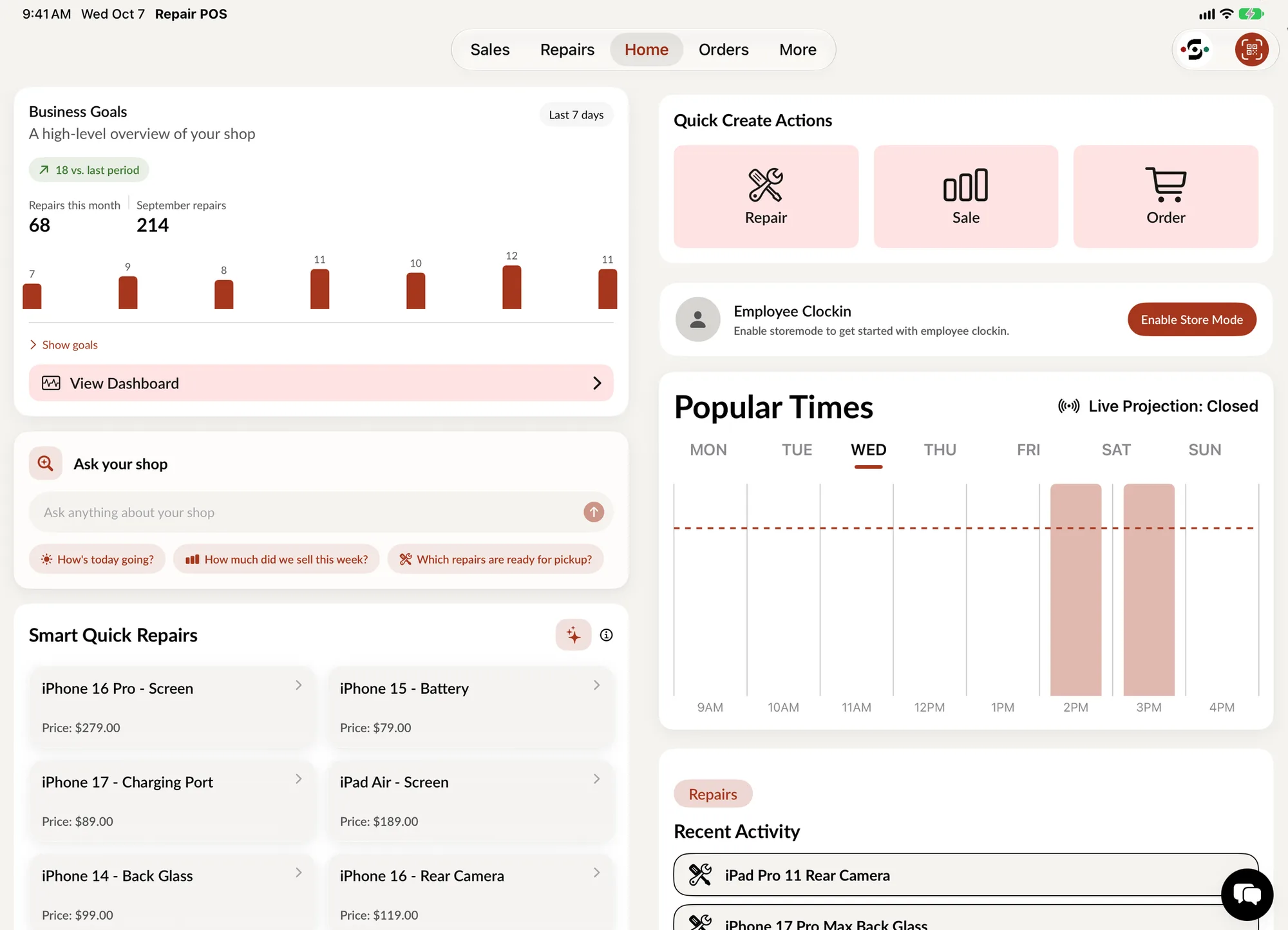
Employee access levels in SpotsPOS
Every person signs in with their own PIN, and what they see depends on who they are in your shop.
-
Owner and admin
Administrative features ask for the admin PIN before they open. Only you, or whoever you trust with that PIN, can change them.
-
Store managers
Give a manager administrative rights to one or more shops. Each employee also has a primary shop, the location they normally work in.
-
Employees
For each employee, turn features off one by one: repairs, appointments, inventory, orders or sales. They only see what you leave on.
-
Blind inventory count
Turn on Blind Count for an employee and the system quantity is hidden while they count, so the count is not biased. Differences still show on the overview.
-
Prevent login
Stop an employee from signing in with one switch, or un-employ them when they leave so they lose access and drop off the employee list.
-
Login alerts
Turn on an email to yourself after each employee login, and check Recent Activity in Security Settings.
Store Mode keeps the counter iPad safe.
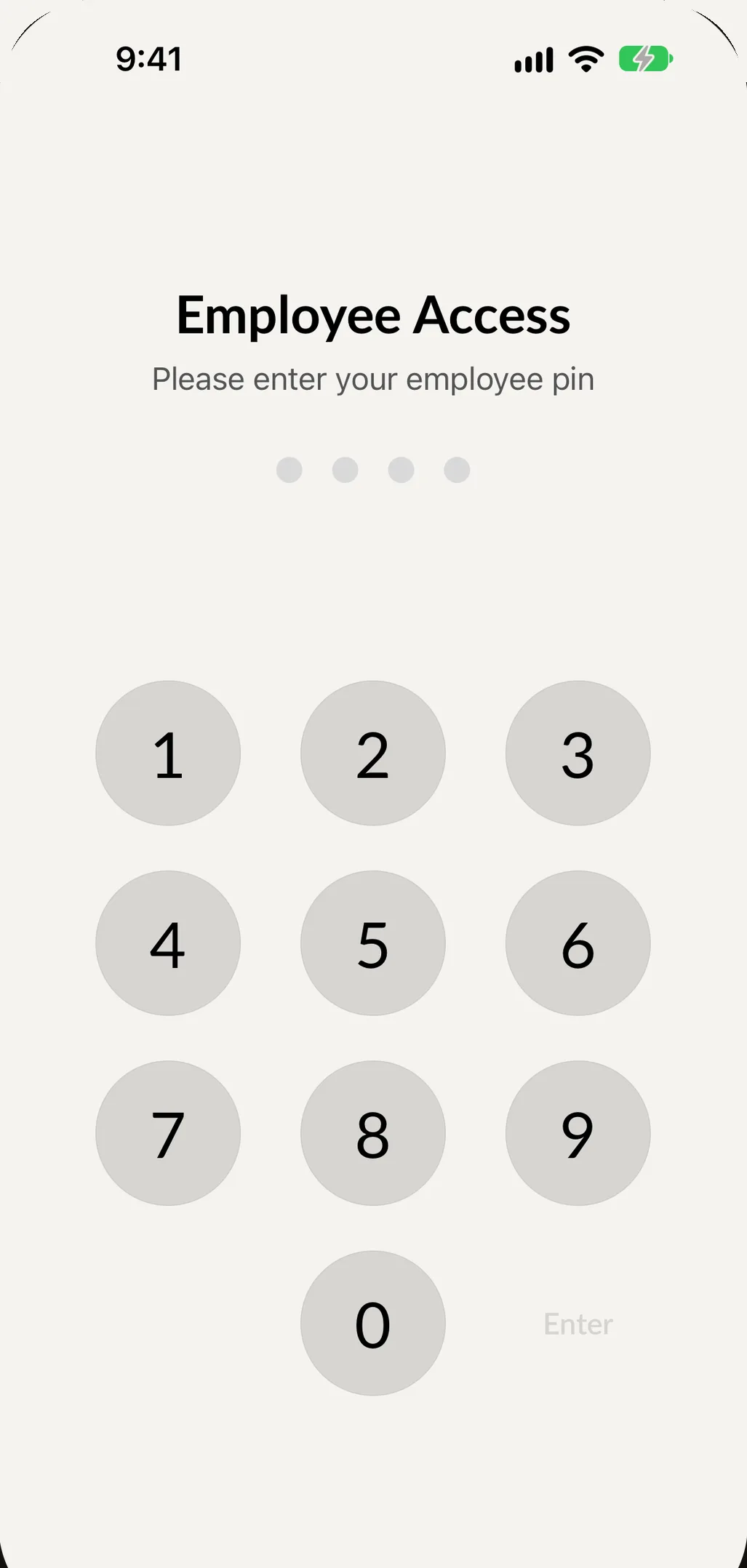
With Store Mode on, some administrative features are hidden or turned off, and the iPad asks for an employee code when someone creates a sale, a repair or an inventory count. Every action is tied to the person who did it.
- Switch Employee at checkout with a PIN
- Set a PIN timeout for the shop, or one per employee
- Admin settings ask for the admin PIN
- The employee is recorded on sales and receipts
Set up employee permissions in four steps
-
Create the employee
Add their name, email, phone, job title and employee type. You can also set a PIN lock timeout just for them.
-
Open Employee Limitations
From the employee's profile, open Employee Limitations and select the features you want to give them access to.
-
Choose their shops
In Store Management, set their primary shop. For a store manager, select the shops they should have administrative rights to.
-
Turn on Store Mode
On the shared iPad, turn on Store Mode so everyone works under their own employee code and admin tools stay locked.
Why POS employee permissions matter in a small shop
In a small shop, everyone does a bit of everything, and it is tempting to give everyone full access. Then a part-timer opens the sales totals, a new hire wanders into settings, or nobody can say who rang up that sale.
POS employee permissions fix that without slowing anyone down. Your technicians see repairs. Your floor staff see sales and inventory. Your manager sees the stores they run. You keep the settings, the costs and the comparisons.
What each role can see and do
Employees
You choose per person. The switches in Employee Limitations are Hide Repairs, Hide Appointments, Hide Inventory, Hide Orders and Hide Sales, plus Blind Inventory Count and Prevent Employee Login. A technician who only works the bench might see repairs and inventory and nothing else. When an employee with Blind Count runs an inventory count, they cannot see the expected quantity or past counts, so they count what is really on the shelf.
Access rules also apply in Ask your shop. When someone asks the shop a question in Ask your shop, the answer respects their access: accounts without access to sales totals are not shown them, only admins and store admins can see inventory costs, and only admins can compare employees.
Store managers
A store manager gets administrative rights to the shops you select, which is useful when you run more than one location. Each employee still has one primary shop.
Owner
You hold the admin PIN. Administrative features ask for it, and so do sensitive settings like changing the admin email. Some features add their own checks. In buybacks, for example, you can require each employee to confirm a purchase with their PIN and decide whether employees can change the offer.
Accountability without micromanaging
Every employee profile shows their repairs, their sales and any repairs marked Tech Damage, plus their timesheets and meetings. Employee sales and repairs reports, including monthly versions, sit in reports. When someone leaves, un-employ them. They lose access to log in, and you can re-employ them later if they come back.
Permissions work together with the employee time clock: the same PIN that opens the iPad is personal to each employee.
Employee permission questions owners ask
How do I restrict what employees can see in my POS?
Open the employee's profile, go to Employee Limitations and turn on the features you want to hide: repairs, appointments, inventory, orders or sales. You can also turn on Blind Inventory Count or prevent that employee from logging in.
Can employees see sales totals and inventory costs?
Only if you let them. You can hide Sales for an employee, and inventory costs are limited to admins and store admins. Only admins can compare employees.
Can a store manager manage more than one shop?
Yes. In Store Management, select every shop the manager should have administrative rights to. Each employee also keeps one primary shop.
How do I remove access when an employee quits?
Un-employ them. They lose access to log in and no longer appear on the employee list. If they come back, re-employ them and their access returns.
Which plan includes user management and employee permissions?
User management is included in the Essential and Pro plans, and the Starter plan is for one employee. Employee Manager, with the time clock and timesheets, is part of Pro. See pricing for the full comparison.
Keep exploring
- Employee time clock Each person clocks in with their own PIN or phone.
- Timesheets Hours, breaks and estimated pay for every employee.
- Multi-store Run several locations from one account.
- Reports Sales and repairs by employee, by day and by month.
- Reliability and security How SpotsPOS stays up and keeps your data safe.
Give everyone the access they need, and no more.
Start a free trial and set up your team's permissions in minutes.
Free for 14 days.