
SpotsPOS Retail
Send invoices to customers from the register.
Not every customer pays on the spot. With SpotsPOS you can send invoices to customers straight from checkout, keep every open invoice in one place, and take payment when it comes in. Invoicing works the same in SpotsPOS Retail and SpotsPOS Repair.
Free for 14 days. No credit card needed.
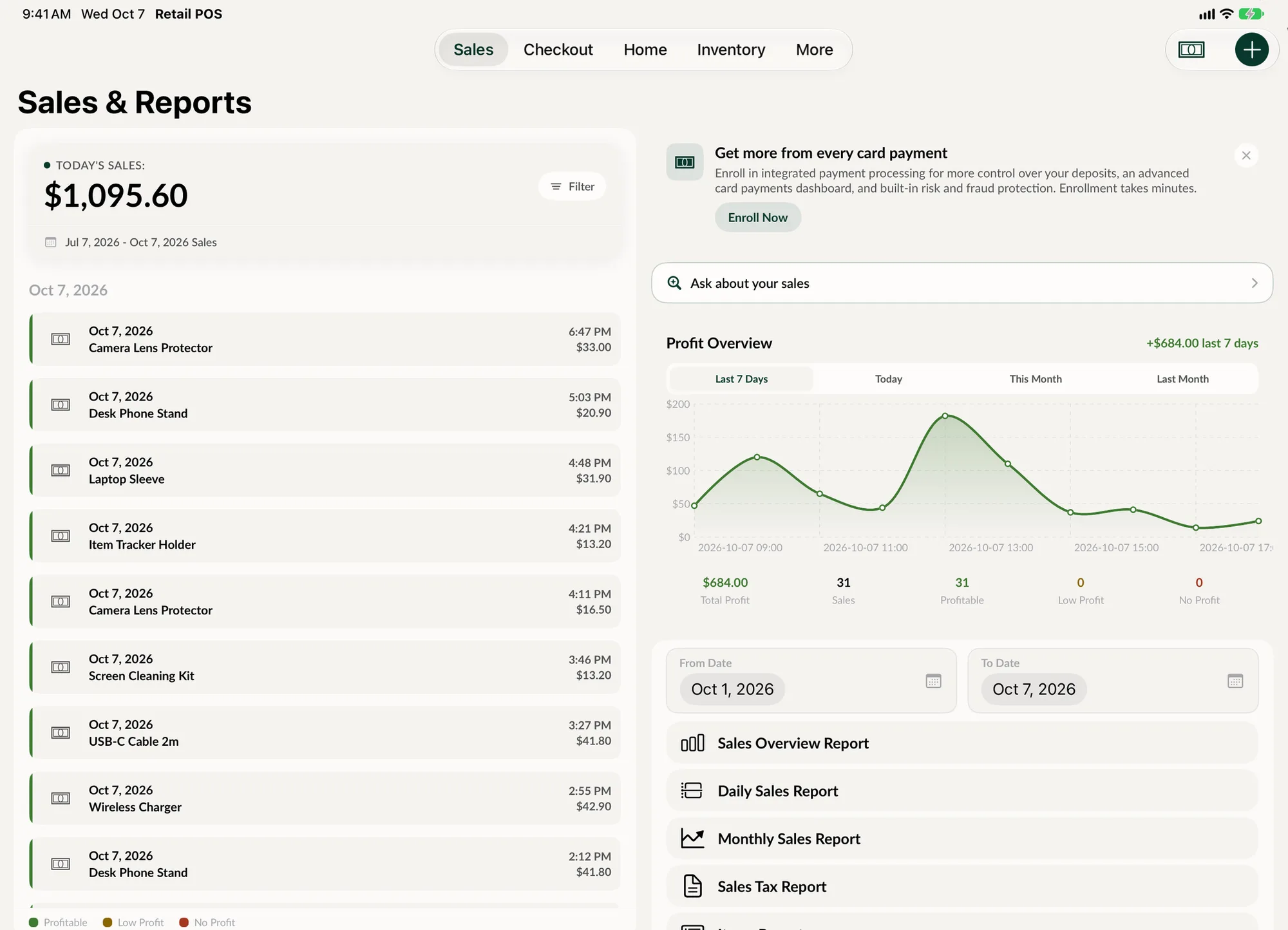
From sale to invoice in one step.
An invoice starts as a normal sale. The only difference is the last tap.
-
Send Invoice at checkout
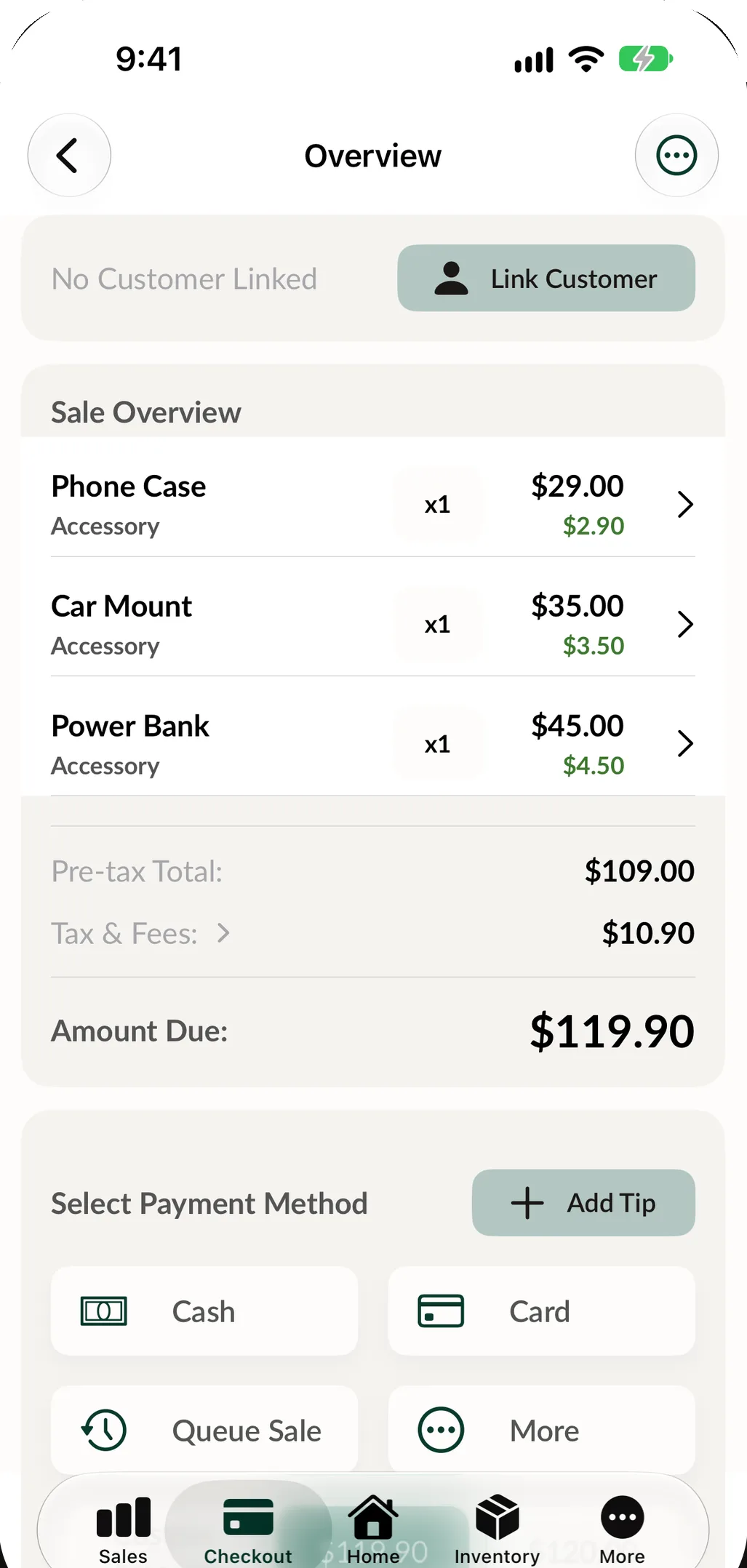
Build the sale as usual, then choose Send Invoice instead of taking payment now.
-
One tab for open invoices
Every invoice waits in the Invoices tab at checkout, next to repairs, orders and queued sales.
-
Pay at the counter
When the customer is ready, tap Pay on the invoice and take payment like any other sale.
-
Print or email
Print a copy for your records or email it, right from the invoice.
-
Linked to the right job
Link an invoice to a customer, or to the repair it was for, so the history stays complete.
-
Void when needed
Void an invoice and choose whether the items go back into stock with Void and Restock.
How to send an invoice
-
Build the sale
Add products, repairs or anything else from checkout, and link the customer you are billing. Discounts and tax work exactly as they do on a normal sale.
-
Choose Send Invoice
On the payment screen, pick Send Invoice. SpotsPOS confirms with Invoice Sent and the invoice goes to your customer.
-
Keep an eye on it
The invoice sits in the Invoices tab at checkout until it is paid, so open invoices never get lost in a list of finished sales.
-
Take payment
When the customer pays, open the invoice, tap Pay and finish the payment. It lands in your sales and your end of day report with everything else.
Made for your business customers.
Invoices fit best with customers who buy often and pay on account, like a school, a dealer or a small company that sends you its devices. Mark them as B2B customers and keep them in their own list, with a special discount applied at checkout if you offer one.
- B2B customers in their own list
- A special discount at checkout, set per customer
- Sales, repairs and store credit on each customer's profile
When to send invoices to customers
Most sales are paid at the counter, and that is how it should be. Invoices are for the others: a business customer that pays monthly, a repair approved over the phone by someone who is not in the shop, or a bulk order that a company's office pays for. In each case you want the sale recorded today and the money tracked until it arrives.
Because an invoice in SpotsPOS starts as a normal sale, the items, prices, discounts and tax are all already right. You are not rebuilding the sale in a separate billing tool, and nothing has to be typed twice.
Before you send your first invoice
Sending invoices uses SpotsPOS payment processing. If your shop has not completed the merchant onboarding form yet, SpotsPOS tells you so the first time you try to send an invoice and takes you to the form. Once that is done, Send Invoice is available on every sale. See how payment processing works with your checkout.
Keeping invoices tidy
Every invoice can be linked to a customer and to a repair ticket, so you can always see who it was for and what job it paid for. If an invoice was a mistake, void it. You can void only, or void and restock, which puts the items back into inventory. Invoices you no longer need can be deleted.
Other ways to get paid later
An invoice is one of several ways SpotsPOS handles money that has not arrived yet. Pick the one that fits:
- Queue Sale parks a sale for later in the orders queue when the customer will pay in person, but not right now.
- Deposits let a customer pay part of what they owe toward specific items, with the balance tracked until it is paid in full.
- Layaway spreads a purchase over weekly, bi-weekly or monthly payments with a due date.
- Customer orders track a special order for a customer, with payments, a tracking number and a Remind Payment button for the open balance.
- Store credit keeps a balance on the customer's profile that can be applied at checkout.
Invoices in a repair shop
In SpotsPOS Repair, invoices are handy for business accounts that send you devices in batches, or for any approved repair the customer pays for after pickup. Link the invoice to the repair and the two stay connected. Read more about repair tracking.
Invoicing questions
How do I send an invoice to a customer?
Build the sale at checkout and link the customer. On the payment screen choose Send Invoice. SpotsPOS confirms the invoice was sent and keeps it in the Invoices tab until it is paid.
What do I need before I can send invoices?
Sending invoices requires SpotsPOS payment processing. If you have not filled out the merchant onboarding form, the app takes you to it the first time you try to send an invoice.
Can I take payment on an invoice at the counter?
Yes. Open the Invoices tab at checkout, tap Pay on the invoice and finish the payment. The payment shows up in your sales and end of day report.
Can I void an invoice?
Yes. Choose Void Only to cancel the invoice, or Void and Restock to also return its items to inventory. Voiding cannot be undone.
What is the difference between an invoice and a queued sale?
An invoice is sent to the customer and tracked until it is paid. A queued sale is parked in your orders queue for a customer who will pay in person later. Queue Sale is included on SpotsPOS Repair from the Essential plan. See pricing.
Bill your next customer from SpotsPOS.
Set up payment processing, build a sale and send your first invoice today.
Free for 14 days. No credit card needed.