
SpotsPOS Repair
Repair tracking software that follows every job to pickup.
SpotsPOS Repair turns every device on your counter into a ticket with an owner, a status and a price. You always know where a repair is, who has it and what the customer was promised.
Free for 14 days. No credit card needed.
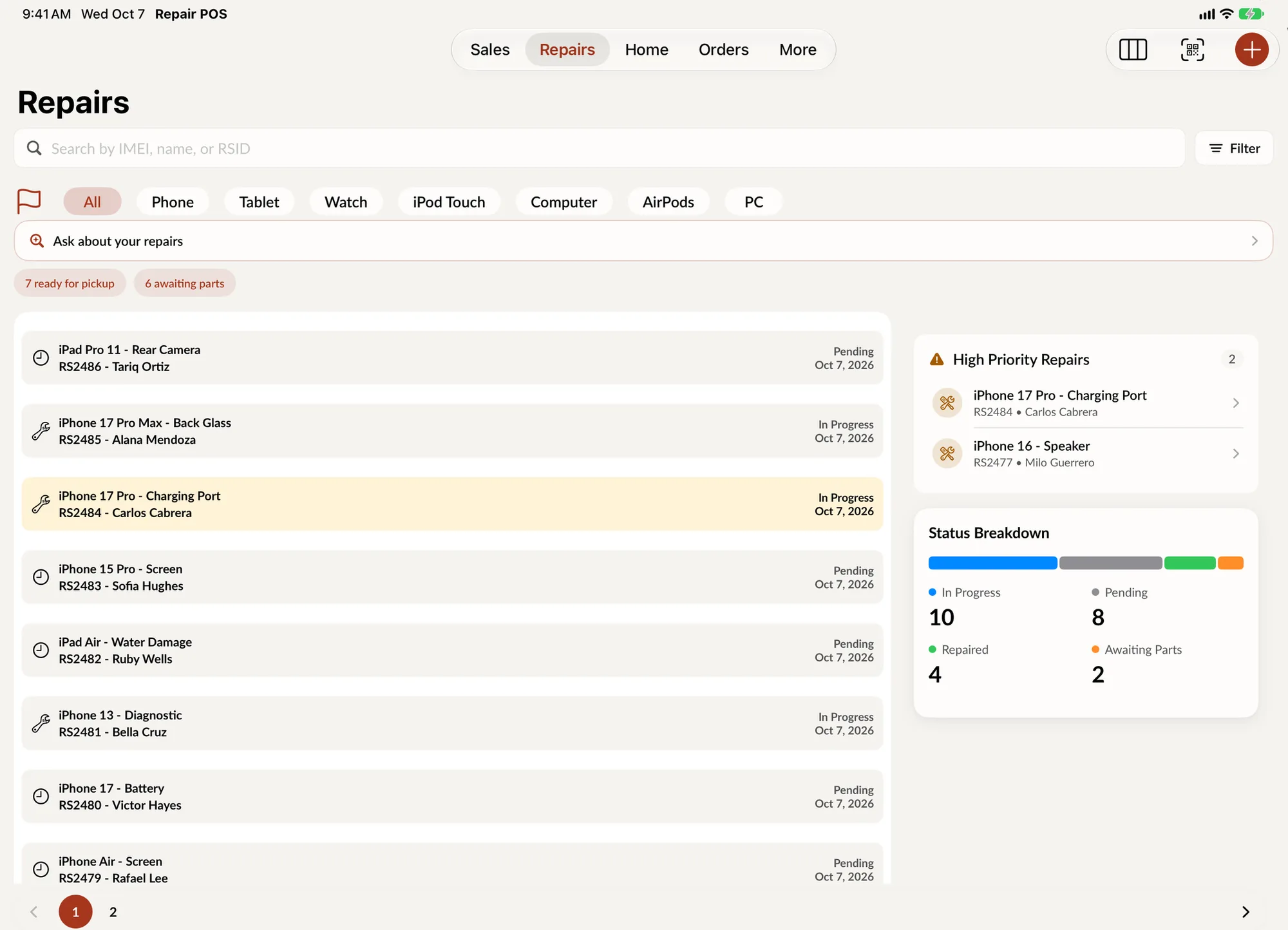
What a repair ticket holds in SpotsPOS
Good repair tracking starts at the counter. Everything below lives on the same ticket, so nobody has to ask the person who checked the device in.
-
Device, IMEI and lock code
Device type, brand and model, the IMEI or serial (scan the barcode and it is read for you), plus the passcode or the drawn unlock pattern.
-
What works before you start
Tick the components that work at check in, or mark the device as not testable. It protects you when the customer says the camera worked before.
-
Terms and signature
The customer accepts your repair terms and signs on the screen. If they are in a hurry, choose to sign later and collect it before pickup.
-
Parts, labor and estimate
Add parts from your inventory, set labor, a discount and tax, and save an estimated price. Take a deposit at the counter if you ask for one.
-
Time logs and diagnostics
Technicians start and complete a repair log against the ticket and write diagnostics with who submitted them. You see what each job really took.
-
Warranty on every repair
Pick a warranty from 3 days to 1 year, or set a date by hand. The ticket shows what is left, and you can reopen it for warranty if the device comes back.
How to track a repair from check in to pickup
-
Check the device in
Pick the device type, brand, model and service. Or tap Describe the repair and say it the way you would to a coworker: "iPhone 13 Pro, cracked screen, needs it tonight." SpotsPOS fills in what it can and you confirm the rest.
-
Price it and get the signature
Choose parts, labor and an estimated price, assign a technician and mark it urgent if it is. The customer signs your terms, and you print the ticket or its QR code to keep with the device.
-
Move it through statuses
Update the status as the work moves: Pending, In Progress, Awaiting Parts, Waiting on customer, Repaired. Every change is kept in the ticket's history with notes, diagnostics and time logs.
-
Notify, collect and close
Tap Notify Customer when it is ready. At pickup, take payment from the ticket, mark it Picked up and close the repair. Set the warranty period and it is on record.
Build a repair ticket right now.
This demo follows the real Create Repair screens with sample data. Nothing is saved.
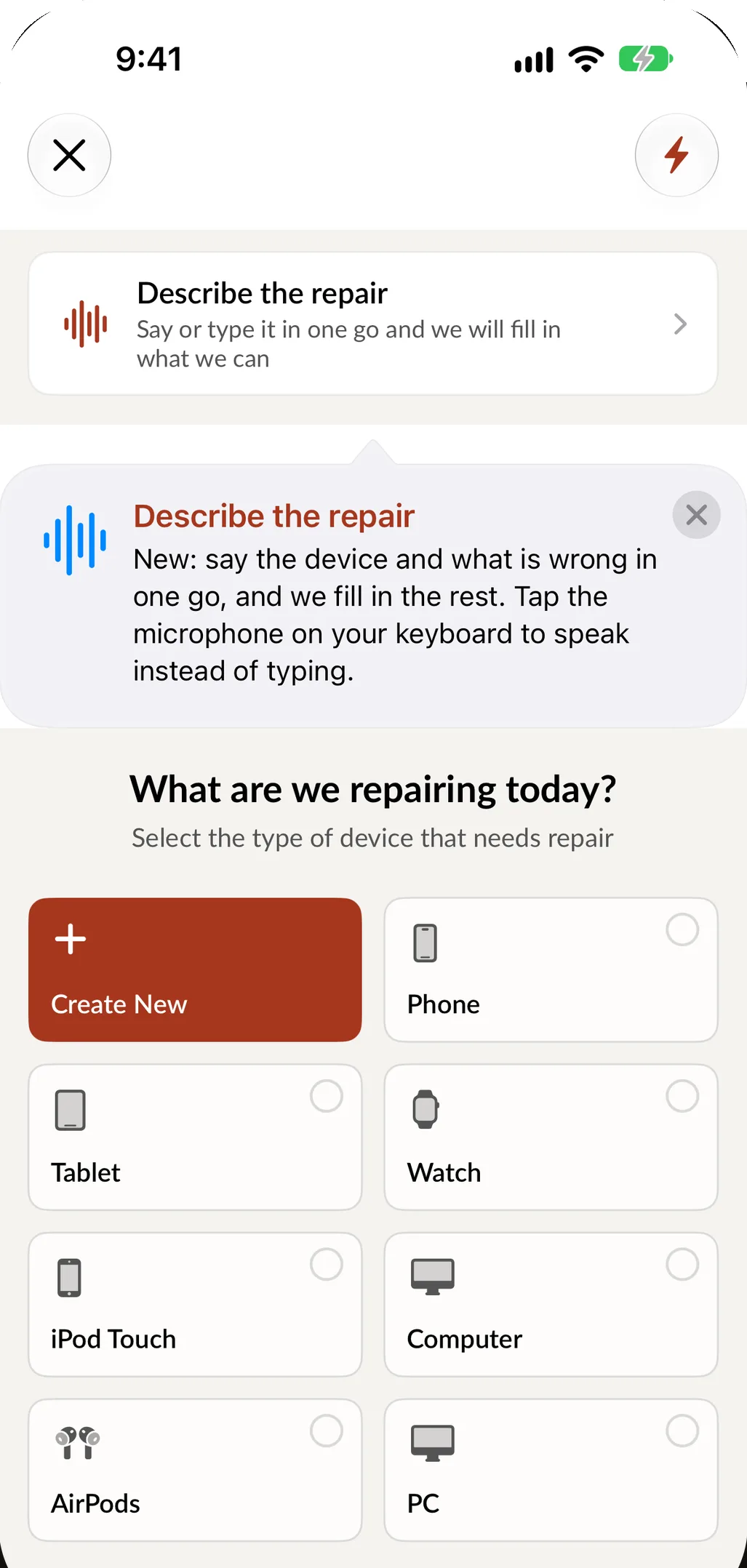
This demo runs in your browser with sample data. Nothing you enter is saved or sent anywhere.
Say the repair, skip the typing.
When the counter is busy, describe the repair in one sentence, spoken or typed, in English or Spanish. SpotsPOS reads the device, the repair, the timing and whether it is high priority, then takes you straight to the step that still needs you. If nothing matches your catalog, you pick as usual.
- Quick Repairs start your most common jobs in one tap
- Suggested Parts show what that repair usually needs, with price and stock
- Hints from your history: returning customer, same device seen before, what you usually charge
Why repair shops move from paper to repair tracking software
A paper ticket can say what is wrong with a phone. It cannot tell you which of your forty open jobs are waiting on a part, which customer has not picked up in two weeks, or how long the last battery swap actually took. That is the job of repair tracking software: one record per device that the whole team updates as the work happens.
In SpotsPOS Repair, the Repairs screen is that record. High priority jobs sit at the top. You can switch between open and closed repairs, filter by status, priority or date range, and search by IMEI, customer name, email, device or ticket number (the RSID). On iPad, the Repair Board shows the same open repairs as columns you drag between.
What a typical day looks like
Morning. A customer drops off a cracked iPad. Your front desk picks iPad, the model and Screen, scans the serial, ticks what works, takes a deposit and gets a signature. If they booked ahead, the ticket starts from their appointment instead.
Midday. The technician opens the ticket, starts a repair log and adds a diagnostic. The screen is out of stock, so the status moves to Awaiting Parts and a note explains why. Internal notes stay with your team. The customer never sees them.
Afternoon. The part arrives, the repair is finished and the status moves to Repaired. One tap on Notify Customer tells them it is ready. See customer notifications for texts, emails and payment reminders.
Pickup. Checkout pulls the parts and labor from the ticket and subtracts the deposit. The parts leave inventory, the receipt goes out by print, email or text, and the repair closes with its warranty set.
Built for the way your shop prices work
Quick Repairs and repair types
Save your everyday jobs, like a screen replacement, a battery swap or a charging port, as Quick Repairs with the service, parts and price already filled in. Repair types link the parts each kind of job uses, and you can add your own brands, devices and services to the catalog.
Labor groups
Create labor groups with an hourly rate per repair type, so time logged on a ticket turns into a fair labor charge.
Spots Intelligence
With Spots Intelligence turned on, Suggested Parts lists the parts a repair is most likely to use, Smart Quick Repairs builds shortcuts from the jobs you do most, and you can ask questions about a specific repair from its ticket.
More than one shop
Transfer a repair to another of your shops when the part or the technician is there (available on multi-shop accounts). Reports show repairs by store, by month and by employee.
Repair tracking questions
How do I track repairs in my shop?
Create a ticket for every device when it comes in, with the customer, the device, the IMEI or serial and the problem. Update its status as the work moves and keep notes, parts and time on that ticket. SpotsPOS Repair does all of this on an iPhone or iPad, and every ticket can be searched by IMEI, name or ticket number.
What repair statuses can I use?
SpotsPOS includes Pending, In Progress, Awaiting Parts, Waiting on customer, Repaired, Shipped, Delivered, Picked up and Paid, plus Tech Damage, Non Repairable and Cancel Repair for jobs that do not go to plan. Every status change is kept in the ticket's history.
Can customers sign the repair ticket on the iPad?
Yes. The customer accepts your terms and conditions and signs on the screen during check in. You can also choose to sign later and collect the signature from the ticket before the device goes back.
Can I record the passcode or unlock pattern?
Yes. Type the lock code or draw the unlock pattern during check in. It is saved on the ticket so the technician can test the device without calling the customer.
How do warranties work on repairs?
Choose a warranty period from 3 days to 1 year, or pick an expiration date by hand. The ticket shows the warranty remaining, and if the device comes back you open it for warranty with a reason and optional photos.
Is Spots Intelligence included in every plan?
Repair tickets and tracking are in every plan. Spots Intelligence features, such as Suggested Parts and Smart Quick Repairs, are included from the Essential plan. See pricing for what each plan includes.
Track your next repair on SpotsPOS.
Start a 14 day free trial and create your first ticket in minutes.
Free for 14 days. No credit card needed.