
SpotsPOS Retail
Purchase orders that land in your inventory.
SpotsPOS purchase order software lets you order from your vendors, receive what actually arrived, and update stock and average cost without retyping a thing. It works the same way in SpotsPOS Retail and SpotsPOS Repair.
Free for 14 days. No credit card needed.
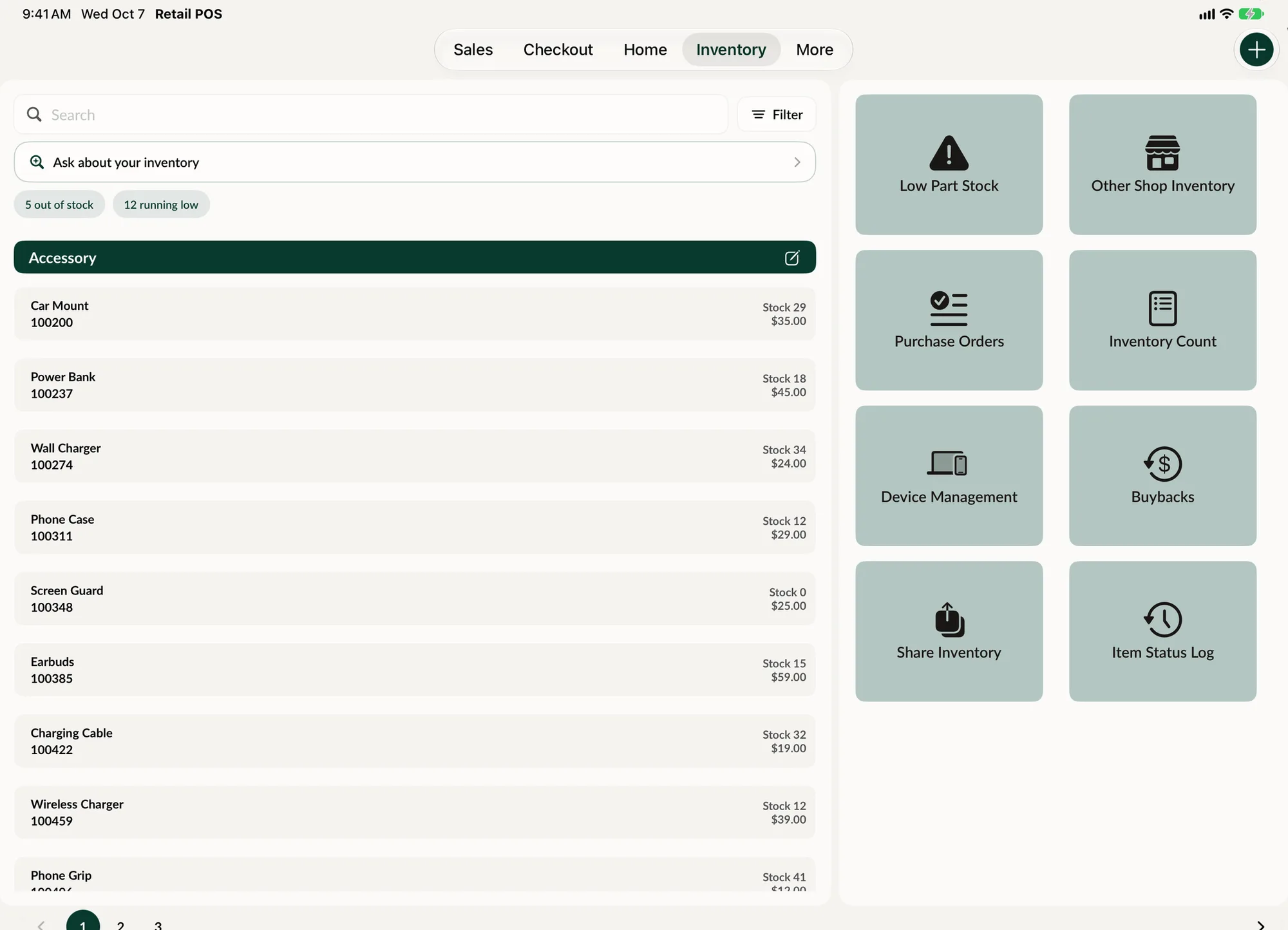
Built around how stock really arrives.
Shipments come in short, prices change between orders, and shipping is never the same twice. Purchase orders in SpotsPOS are made for that.
-
Vendors on file
Keep each vendor's name, email, phone and website, and pick one when you start an order.
-
One vendor per order
Every purchase order belongs to one vendor, so what you ordered and from whom is never mixed up.
-
Real costs
Update the cost of an item when your vendor changes it, then add shipping and tax to see the true total.
-
Partial receiving
Got fewer than you ordered? Lower the quantity for that item when you receive the order and confirm.
-
Average cost kept true
Receiving an order updates stock and adjusts each item's average cost based on what you just paid.
-
Order from your own shops
Shops that share their inventory with you can be ordered from on a purchase order, like any vendor.
How to create and receive a purchase order
-
Start the order on iPad
Open Purchase Orders and choose a vendor, or add a new one. Purchase order creation is an iPad feature, built for the space a full cart of parts or products needs.
-
Add items and costs
Add the items you need and the quantity of each. If the vendor's price changed, update the cost on that line. Add shipping and tax, and the price breakdown shows the subtotal and total.
-
Send it to your vendor
Email the purchase order from its details screen, and it sits in My Orders until the shipment arrives, with the employee who created it on record.
-
Receive what came in
Tap Receive Order. Lower the quantity for anything that arrived short, then confirm. Stock goes up by what you actually received and each item's average cost is adjusted.
-
Check the history
Each item's status log shows it was received from that vendor through a purchase order, so any stock change can be traced back to the order behind it.
Your other shops can be a vendor too.
With Share Inventory, a shop lets partner stores browse its stock and send it purchase orders. Requests arrive in the Incoming tab, and the shop that owns the stock approves every one. Lower a quantity to partially approve, and SpotsPOS warns you when an item does not have enough stock to fulfill the order.
- Share by store ID, and revoke access any time
- Approve, partially approve or decline each request
- Items are logged as dispatched or received through a purchase order
Why a purchase order beats a text to your supplier
Most small shops start by ordering over the phone or by message, then adding the stock by hand when the box shows up. It works until it does not: an item comes in short and nobody notices, a price goes up and your margin quietly shrinks, or the same order gets placed twice because nobody remembered the first one.
A purchase order keeps all of that in one place. You can see every open order under My Orders, what is on it, who placed it, and what it cost. When the shipment arrives, receiving the order is one screen instead of a dozen inventory edits.
What happens to your stock and costs
When you receive an order, SpotsPOS asks you to confirm the quantity of each item. Adjust anything that came in short, then confirm. Stock updates by the quantity received, and the average cost of each item is recalculated from the new cost. That matters, because your profit numbers in reports are only as good as the cost behind every item.
If an order will never arrive, cancel it. A cancelled order cannot be reopened, so your list of open orders stays honest.
From low stock to a purchase order
Purchase orders work best together with the rest of your inventory management. Set a low stock level on the items you never want to run out of, run the Low Stock Report for the inventory types you are reordering, and use that list to build your purchase order. When the order is received, the low stock flags clear on their own because the stock is back.
Purchase order software for stores and repair shops
In SpotsPOS Retail, purchase orders restock the accessories, cables and gadgets on your shelves. In SpotsPOS Repair, they bring in the screens, batteries and other parts your technicians use on repair tickets. Either way, the stock you receive is the same stock the register sells and the bench uses.
Purchase orders are for restocking your shop. When a customer asks you to order one specific item for them, SpotsPOS has customer orders for that, with their own status, tracking number and payment history.
Ordering across locations
If you run more than one store, Share Inventory turns each shop into a supplier for the others. One shop shares its stock with another by store ID, and the second shop can then pick it as the source of a purchase order. The shop holding the stock reviews each incoming request and approves it in full, in part, or not at all. See how multi-store management fits together.
Purchase order questions
How do I create a purchase order in SpotsPOS?
On an iPad, open Purchase Orders, choose a vendor and add the items and quantities you need. Update any costs that changed, add shipping and tax, and save the order. It then waits in My Orders until you receive it.
Can I receive only part of a purchase order?
Yes. When you receive the order, lower the quantity for any item that arrived short and confirm. Only what you received is added to stock.
Does receiving a purchase order update my item costs?
Yes. Receiving an order updates the stock and adjusts each item's average cost based on the cost on the order. Your profit numbers stay accurate as vendor prices change.
Can I create purchase orders on iPhone?
Purchase order creation is done on iPad, where there is room for a full cart of items. The rest of SpotsPOS, including checkout and inventory lookups, works on iPhone too.
Which plan includes purchase orders?
On SpotsPOS Repair, purchase orders are included from the Essential plan, and ordering from other shops through the vendor network is part of the Pro plan. See pricing for what each plan includes.
Can my other locations order stock from me?
Yes. Share your inventory with another store by its store ID. That store can then send you purchase orders, and you approve, partially approve or decline each one.
Restock without retyping.
Add your vendors, place your first purchase order and receive it straight into inventory.
Free for 14 days. No credit card needed.