
SpotsPOS Retail
Inventory management that keeps up with the counter.
SpotsPOS inventory management software takes every sale out of stock, tells you when something runs low, and keeps a record of every change. It works the same way in SpotsPOS Retail and SpotsPOS Repair, on iPhone and iPad.
Free for 14 days. No credit card needed.
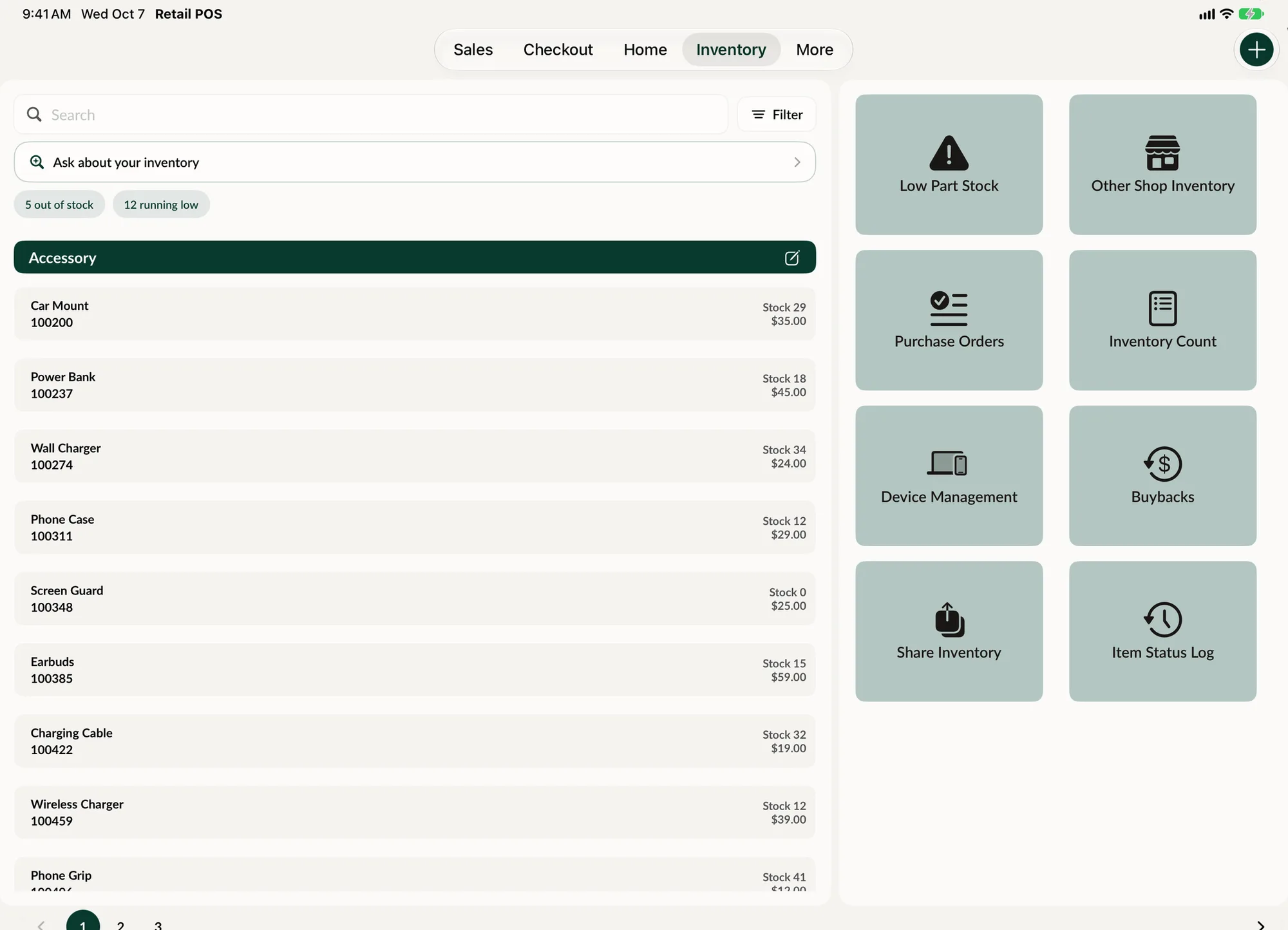
Everything an item needs, in one record.
Each product carries its price, cost, stock, SKU, barcode and tax settings. The register, reports and counts all read from that one record.
-
Scan or search
Find any item by name, SKU, barcode or description, or scan its barcode with the device camera to open it.
-
Add items fast
Quick Add a product in seconds, duplicate one that is almost the same, or mark a line as a service so it never touches stock.
-
Serialized items
Serialize items you track one by one, so every unit has its own IMEI or serial number and its own history.
-
Tax on every item
Mark an item taxable or not and give it a tax group, so the price at checkout is right without anyone doing math.
-
Barcode labels
Print a barcode from the item's record, so new stock is ready to scan the day it lands on the shelf.
-
Bulk changes
Select many items at once to change their type or remove them together, with one reason logged for the change.
Count the shelf, not a spreadsheet.
An inventory count starts with one question: what would you like to count today? Pick the inventory types, then scan a barcode to jump to an item and enter the quantity on hand, or use the plus and minus buttons. Differences are highlighted as you go.
- Filter the count by All, Uncounted or Variances
- Blind count hides the system quantity from the employees you choose
- See the estimated loss or gain before anything changes
- Sign the count, then email the count report
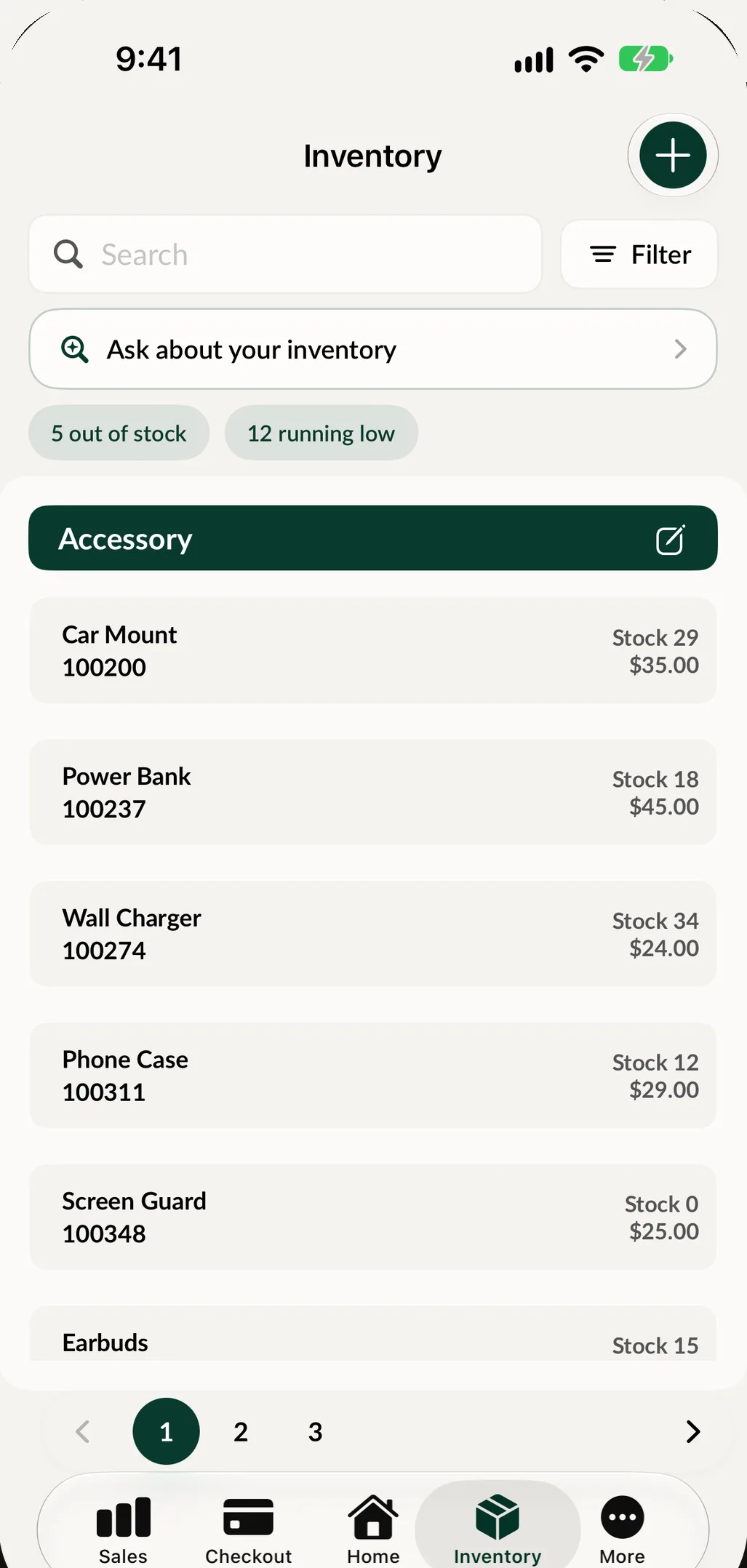
How an inventory count works
-
Choose what to count
Select one or more inventory types, like cases, chargers or screens. Only those items are in the count, so a quick weekly check on your best sellers takes minutes, not an afternoon.
-
Scan and enter what is there
Scan each barcode to jump to the item and type the quantity you counted. Switch the list to Uncounted to see what is left, or to Variances to see only the items that do not match.
-
Review the overview
The overview shows the difference for every item, the new stock, any count or total cost mismatch, and the estimated loss or gain in money, so you know what the count means before you submit it.
-
Sign and submit
Sign on the screen and submit. Stock updates to what you counted, every adjustment lands in the item's history, and the count is saved under Inventory Counts with a report you can email.
Low stock alerts before the shelf is empty
Every item can carry its own low stock level. When stock drops to that level the item is flagged as low, and low stock email notifications can tell you without opening the app. When it is time to reorder, the Low Stock Report lets you pick the inventory types you care about and generates a report you can email. From there, a purchase order brings the stock back in and updates your counts when it arrives.
You do not have to go looking, either. You can ask the app what is running low or what is out of stock, and get the list behind the answer (Spots Intelligence).
A full history for every item
Stock that changes without a reason is stock you cannot trust. The Item Status Log is a complete audit trail of every stock change: who changed what, and when. Each item shows its initial stock, imports, count adjustments, purchase orders received from a vendor, transfers in and out, serial numbers added and units removed.
Changing a product's name, cost or stock quantity asks for a reason, and so does deleting an item. Deleted items are kept in their own log, and unarchiving one restores the item and its stock.
Stock across more than one shop
If you run more than one location, you can open another shop's inventory, see what it has available, and tap the items you want transferred to you. The other shop approves or rejects the request, and every transfer stays in the history on both sides. Shops can also share their inventory with partner stores by store ID, so those stores can order from them on a purchase order, with every request approved by the shop that owns the stock. Read more about running several stores.
Bring your inventory with you
Download the sample CSV file, fill it in with your items, and import it. You review the items before they are submitted. Larger imports of inventory, devices, repairs and customers go through the Web Portal. When you need your data out, inventory, devices, sales and customers can each be exported.
If you also sell online, the Shopify integration adds a sync button to your inventory that pulls the latest items from your Shopify shop and creates or updates them. See all integrations.
Inventory management for retail and repair
SpotsPOS Retail and SpotsPOS Repair share the same inventory tools. In a repair shop, the parts that go on a repair ticket come out of the same stock the register sells from, so a part used on the bench and an accessory sold at the counter are both counted.
Inventory reports cover the rest: an Items Report, a Low Stock Items Report and a Total Inventory Cost Report sit with the rest of your reports.
Inventory questions shop owners ask
How do I do an inventory count on an iPhone or iPad?
Open Inventory Count, choose the inventory types you want to count, then scan each barcode and enter the quantity on hand. The overview shows the differences and the estimated loss or gain. Sign it and submit, and stock updates to what you counted.
Can I set a low stock alert for each item?
Yes. Every item has its own low stock level, and low stock email notifications tell you when items reach it. The Low Stock Report lists low items by inventory type. On SpotsPOS Repair, low stock reports and advanced inventory are included from the Essential plan. See pricing.
Can I print barcode labels for my products?
Yes. Print a barcode from any item's record, so new stock can be scanned at the register and during counts. Scanning works with the device camera or a barcode scanner.
How do I move stock from one of my stores to another?
Open the other shop's inventory, select the items and send a transfer request. The other shop approves or rejects it, and the transfer is logged in each item's history. Your account needs more than one shop, and on SpotsPOS Repair inventory transfers between shops are part of the Pro plan.
Can I import my inventory from my old POS?
Yes. Download the sample CSV file, fill it in with your products and import it from the app, reviewing the items before you submit. Larger imports can be done through the Web Portal.
Can employees count without seeing what the system expects?
Yes. Turn on Blind Inventory Count for an employee in their limitations. The system quantity is hidden while they count, and the differences still show on the overview for you to review.
Keep exploring
Count your stock with SpotsPOS.
Add a few products, print their barcodes and run your first count today.
SpotsPOS Retail has a free plan. SpotsPOS Repair starts with a 14 day free trial.