
SpotsPOS Repair
The repair shop kanban board that lives on your iPad.
Repair Board lays out your repairs as cards, each in the column of its status. Drag a card to the next column and the repair is updated. Your whole bench, readable from across the room.
Free for 14 days. No credit card needed.
What Repair Board does for your bench
A list tells you what exists. A board tells you where things are stuck. Repair Board is built on the same repairs your team already tracks, so there is nothing new to keep in sync.
-
One column per status
Pending, In Progress, Awaiting Parts, Waiting on customer, Repaired and the rest. Every open repair sits in the column that matches its status.
-
Drag to update
Move a card to another column and SpotsPOS asks you to confirm, then updates the repair's status. No second screen, no retyping.
-
Your columns, your order
Show the columns your shop uses, hide the ones it does not, add a column back and drag them into the order your work flows. Reset to defaults anytime.
-
Filter by technician
Switch from all technicians to one person and see only their jobs. Good for a morning check in, or for a technician planning their own day.
-
High priority stands out
Repairs marked high priority carry a badge on their card, so the rush job never hides in the middle of a column.
-
Safe when the Wi-Fi blinks
If a status change cannot be saved, the card moves back to where it was and the board tells you to check your connection. What you see is what is saved.
The same repairs, two ways to look at them.
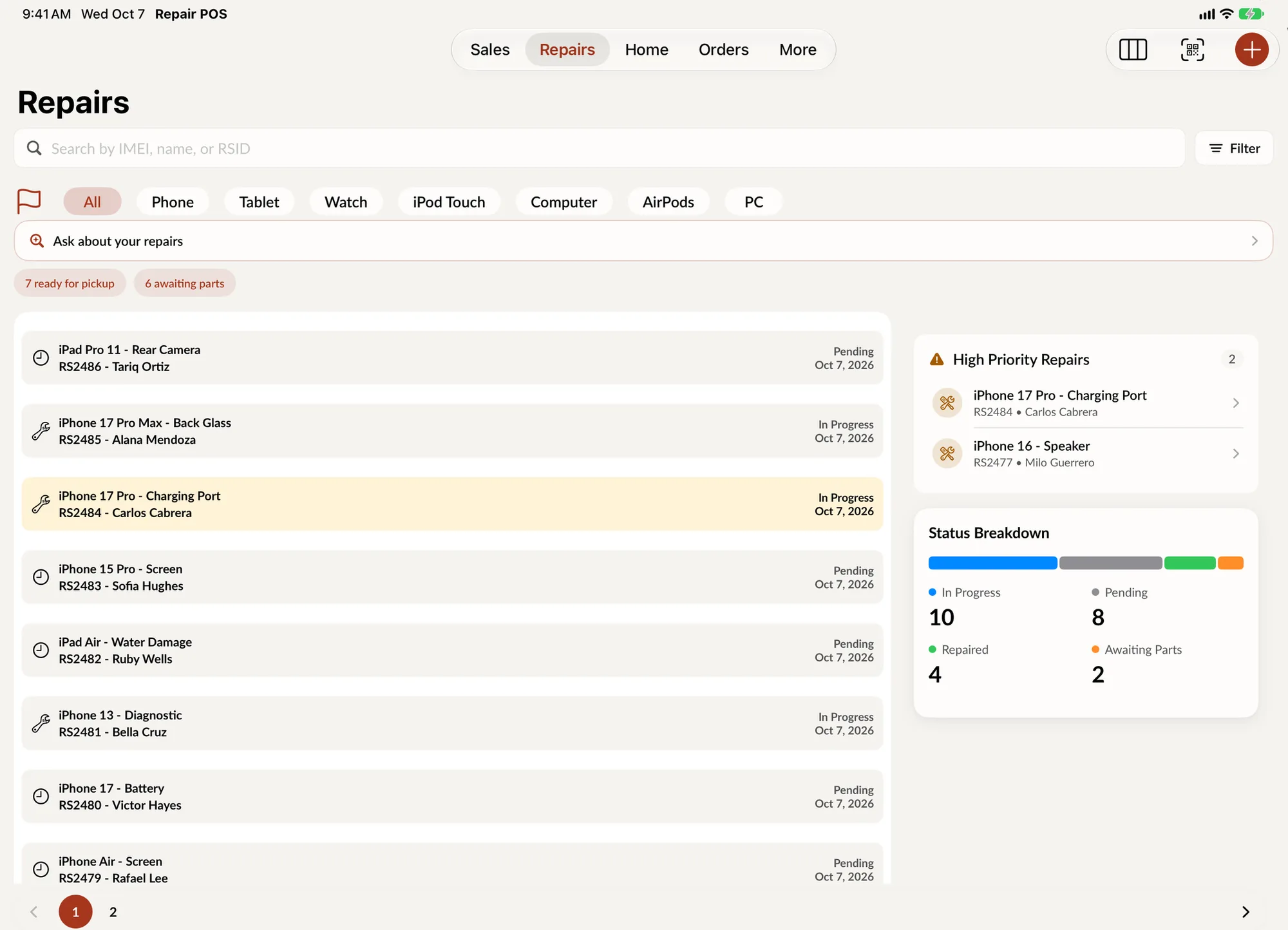
Repair Board is a view of your Repairs, not a separate tool. The list is still there for searching by IMEI, name or ticket number. The board is there for seeing flow: how many jobs are waiting on parts, how many are done and waiting on the customer, and what to start next.
- Status changes from the board and the list are the same change
- Load more repairs into a column when it gets long
- High priority jobs stand out at a glance
How to run your day from a kanban board
-
Set up your columns once
Open the board settings and choose which statuses show as columns. A walk-in phone shop might keep Pending, In Progress, Awaiting Parts and Repaired. A mail-in shop might add Shipped and Delivered.
-
Start the day by reading the board
Count the cards in each column. A tall Awaiting Parts column means it is time to order. A tall Repaired column means customers need a nudge to come in.
-
Pull work, then drag it forward
Technicians take the next card from Pending, drag it to In Progress, and move it on when the work is done. Each move asks for a quick confirm so nothing slides by accident.
-
Close the loop at pickup
When a repaired device goes home, drag its card to Picked up, or close the repair from its ticket when you take payment.
Why a kanban board works for repair shops
Kanban is a simple idea: put each job on a card, put the cards in columns by stage, and move them left to right. It works for repair shops because repair work is exactly that. Every device goes through the same few stages, and the trouble always hides between them: the phone that has been "waiting on parts" for nine days, or the laptop that was fixed on Tuesday and nobody called about.
A repair shop kanban board makes those gaps visible without anyone running a report. You do not need to filter a list or remember to check. The column is either short or it is not.
Who Repair Board is for
Shops with more than one technician. When two or three people share a bench, the board shows who has what. Filter by technician to see one person's queue.
Owners who are not always behind the counter. Open the board on the iPad and in a few seconds you know whether the day is on track, without asking anyone.
Busy front desks. When a customer calls to ask about their repair, the front desk can see where it stands at a glance and open the ticket for the details.
Repair Board and the rest of SpotsPOS
The board does not replace the ticket. Each repair still has its full record, with the customer, the device, parts, notes, diagnostics and time logs, as described on the repair tracking page. When a card lands in Repaired, the next move is usually to tell the customer, and customer notifications cover how SpotsPOS does that.
Repair Board is part of SpotsPOS Repair. It is designed for the larger screen of an iPad. On iPhone, the Repairs list gives you the same statuses, filters and search in a layout that fits in your hand.
Tips from the bench
Keep your columns few. Most shops run well with five or six. Hide statuses you rarely use and add them back when you need them.
Make Waiting on customer mean one thing, for example "we sent an estimate and need a yes." A column with a clear meaning is a column people trust.
Look at Repaired before you close for the day. Every card there is money waiting to be collected.
Repair Board questions
What is a kanban board for a repair shop?
It is a board with one column per repair stage, such as In Progress or Awaiting Parts, and one card per device. You move cards from column to column as work progresses, so the whole shop can see what is stuck and what is ready at a glance.
Do I need an iPad to use Repair Board?
Repair Board is designed for iPad. On iPhone you get the Repairs list, with the same statuses, filters and search. Both work on the same repairs, so your team can use either.
Does dragging a card change the repair's status?
Yes. Dropping a card in another column asks you to confirm, then updates the status of that repair. If the change cannot be saved, the card goes back to its column and you are asked to check your connection.
Can I choose which columns show on the board?
Yes. In the board settings you show or hide columns, add a column, drag them into your own order, or reset to the defaults.
Can each technician see only their own repairs?
Yes. Use the technician filter to switch from all technicians to one person. The board then shows only the repairs assigned to them.
See your bench on one screen.
Start a 14 day free trial and open Repair Board on your iPad today.
Free for 14 days. No credit card needed.