
Purchase orders, now in the Web Portal
Create, receive and approve purchase orders from any computer. The Web Portal now works with the same purchase orders as the SpotsPOS app on iPad.
- Released
- November 20, 2026
- Where
- Web Portal, Inventory > Purchase Orders
- Works with
- The same orders as the iPad app
Purchase orders have been in the SpotsPOS app for a while. Now they are in the Web Portal too, under Inventory > Purchase Orders. Restocking usually happens at a desk, with a vendor's price list open in another tab, so you can now do it from the office computer instead of the iPad at the counter.
It is the same purchase orders, not a copy. An order started in the Web Portal shows up in the app, and one started on the iPad can be received in the portal.
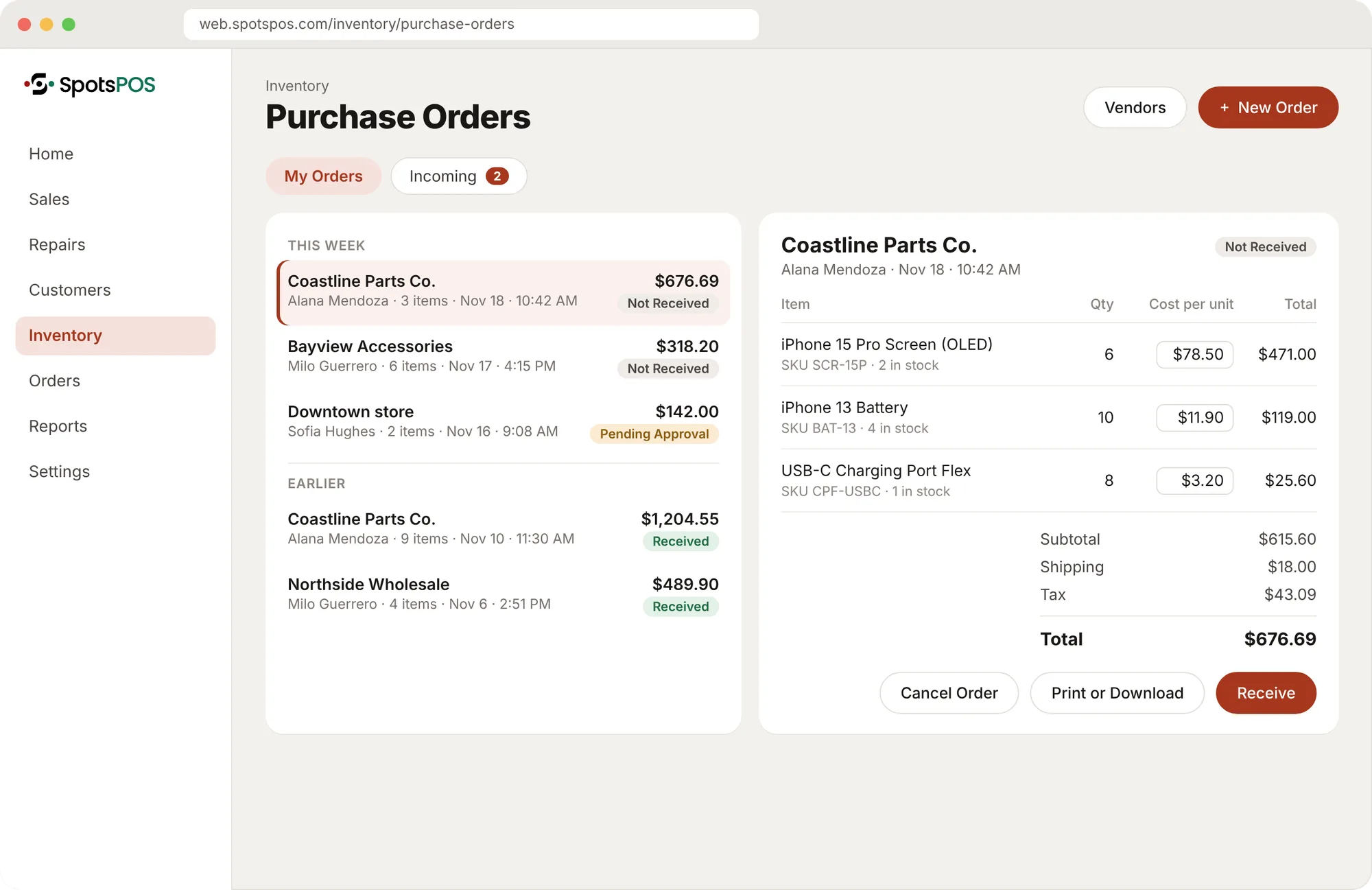
What you can do from the Web Portal
- Create an order. Pick a category, search for the items you need and add them to My Cart. Update the cost per unit if your vendor's price changed, add shipping and tax, link a vendor and submit.
- Manage vendors. Choose one of your vendors, add a new one with their email, phone and website, or edit one. Deleting a vendor asks for an admin PIN.
- Receive what arrived. Open the order, click Receive and lower the quantity of anything that came in short. Stock goes up by what you received and each item's average cost is updated.
- Print or download it. Every order can be printed or saved as a PDF to send to your vendor.
- Cancel an order that will never arrive, so your list of open orders stays honest.
Orders between your shops
If your shops share inventory, the Incoming tab lists the requests other shops sent you, with a count of the ones still waiting. Approve all of a request, lower a quantity to approve part of it, or decline it. When an item does not have enough stock, the portal tells you before you approve. A shop that orders from a partner can browse that shop's catalog right in the order.
Try it
Sign in to the Web Portal and open Inventory > Purchase Orders. New to purchase orders? Read how purchase orders keep your stock and costs right.