
Repair Reports: every repair number, one tap away
A new dashboard inside Repairs: turnaround, comebacks, profit and technicians for any dates, plus custom reports you build in a few taps. And a faster app.
- Available
- November 2, 2026
- App
- SpotsPOS Repair
- Works on
- iPhone, iPad and Web
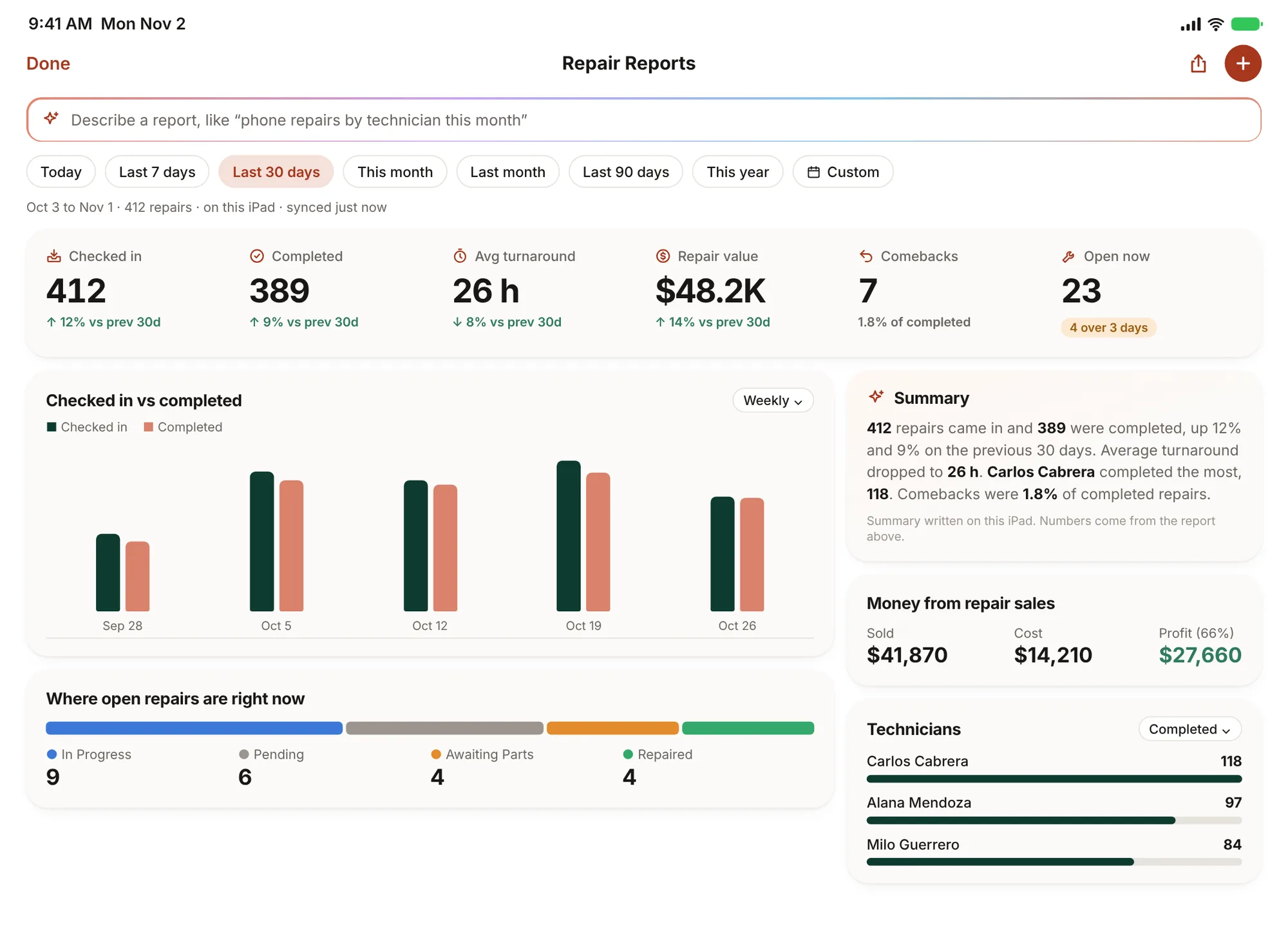
How many repairs came in this month? How long do they take? Which technician has the most comebacks? Until now those answers lived in a PDF, a spreadsheet or your head. Starting with this update, they live one tap away, at the top of Repairs.
Six numbers up top
Open Repairs and tap the reports icon at the top. Pick the dates: Today, Last 7 days, Last 30 days, This month, Last month, Last 90 days, This year, or any custom range. Six numbers sit at the top:
- Checked in. Repairs that came through the door.
- Completed. Repairs your technicians finished.
- Avg turnaround. Hours from check in to completion.
- Repair value. The quoted price of the repairs checked in.
- Comebacks. Repairs opened again for warranty, and what share of completed repairs that is.
- Open now. Repairs still open, and how many are older than 3 days.
Each one shows how it compares with the period before. Tap Checked in, Completed, Repair value or Open now and SpotsPOS lists the repairs behind the number.
The rest of the picture
Below the numbers:
- Checked in vs completed, daily, weekly or monthly, so you can see when the bench falls behind.
- Where open repairs are right now, by status.
- Technicians, side by side: checked in, completed, repair value or average turnaround.
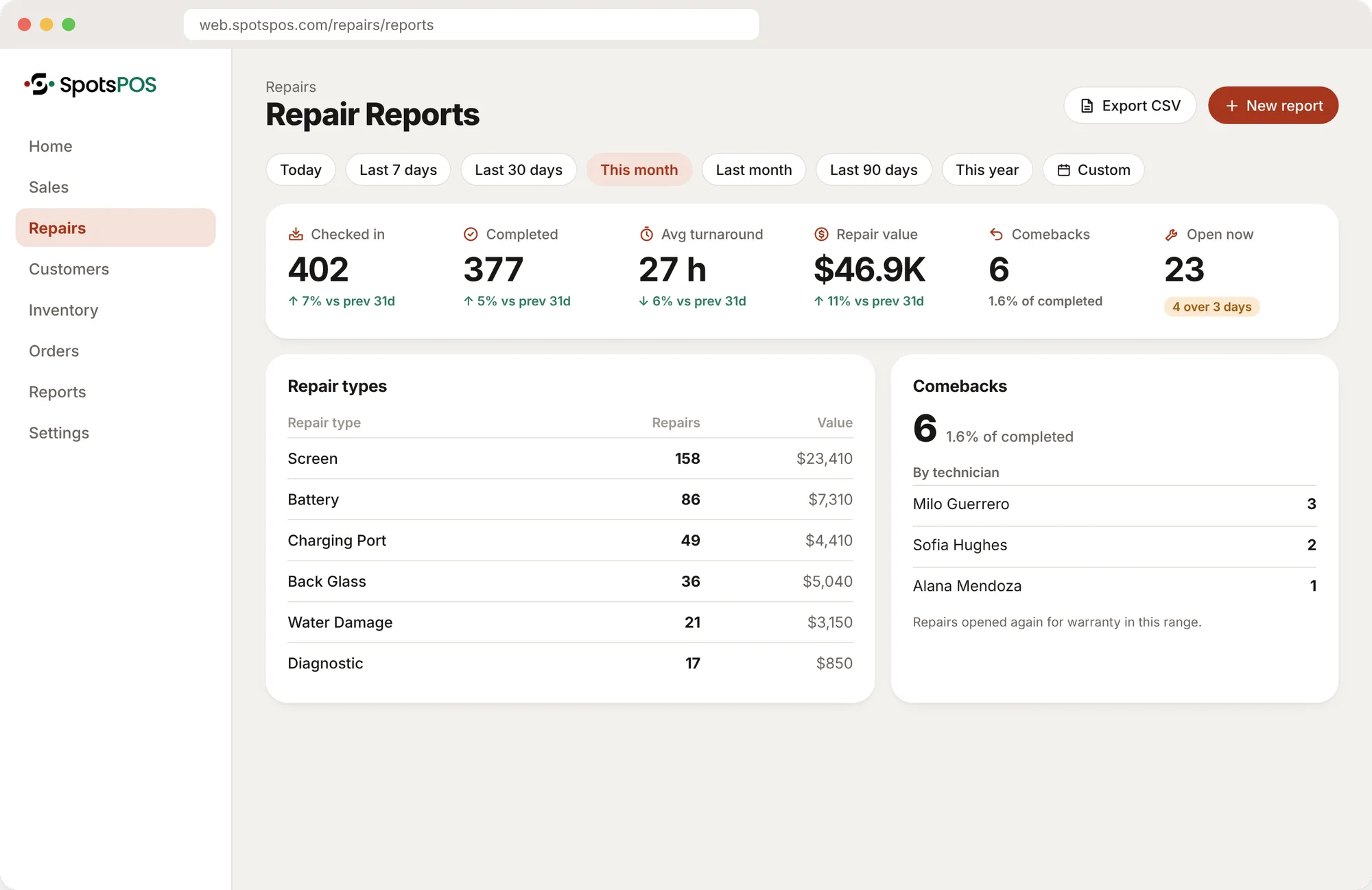
- Top devices and repair types.
- Money from repair sales: what parts, labor and other lines sold for, what they cost and the profit, before tax and discounts.
- Comebacks by device and by technician.
Employees who can't see sales don't see the money, and employees who can't compare coworkers don't see the technician list.
A summary, written for you
Next to the numbers, Spots Intelligence writes a few plain sentences about the period: what came in, what got done, who completed the most and how comebacks look. On iPhone and iPad with Apple Intelligence, the summary is written on the device, and every number in it is checked against the report. If a number doesn't match, you get the plain facts instead.
Build your own report
When the standard view isn't the question you have, tap New report:
- Measure. Repairs checked in, repairs completed, repair value, average turnaround or open repairs.
- Group by. Over time, technician, device, device type, repair type or status.
- Dates and filters. Any range, for one technician, one device type or one status.
- Chart. Bars, donut, ranked list or table, with a live preview while you choose.
Save it, and it waits for you under My reports. Or skip the builder and type what you want, like "completed repairs by technician this month" or "repair value by repair type last 90 days". Need it in a spreadsheet? Export the report to CSV.
On the Web Portal too
Repair Reports is in the Web Portal, so the same numbers are on the office computer, with the same date ranges, comebacks, repair types and CSV export.
Offline, and older dates
Your iPhone or iPad keeps the last 30 days of repairs, so recent ranges are counted right on the device, even without a connection. Older ranges are counted by SpotsPOS when you are online. Money and comebacks always come from SpotsPOS, so they need a connection.
Faster, everywhere you tap
This update also makes the iPhone and iPad apps faster across the board:
- Opens faster. No more fixed wait on the launch screen.
- Steadier screens. Screens load their data once and keep it, so scrolling and pulling to refresh feel smooth.
- Search that keeps up. Type fast and the results follow your latest letters.
- Heavy work in the background. Printing, QR codes, photos and CSV files are made off screen, so the app stays quick while they run.
What you need to do
Update SpotsPOS Repair from the App Store, open Repairs and tap the reports icon. On a computer, sign in to the Web Portal. Repair Reports is included in your plan.
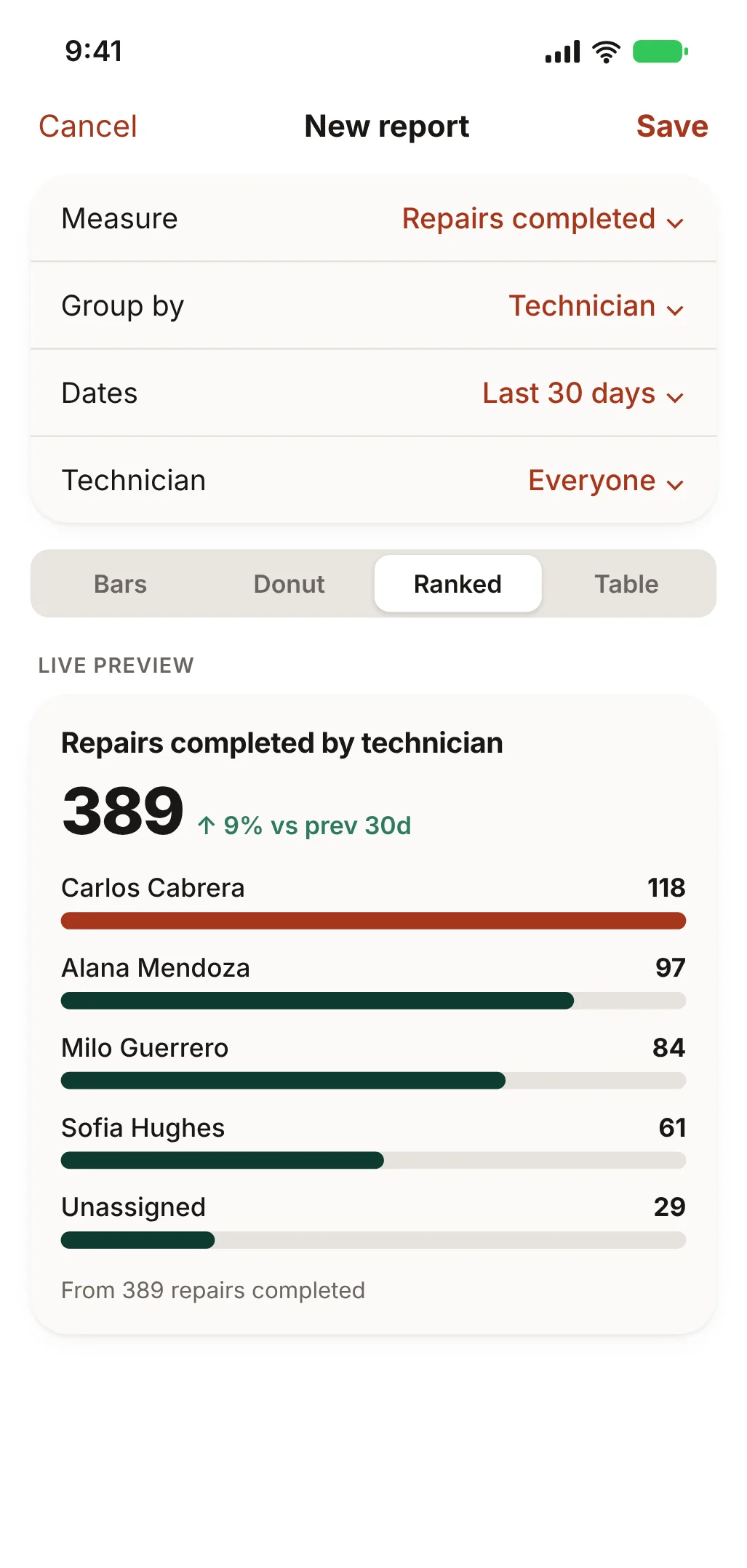
The report builder: repairs completed by technician, as a ranked list. Illustration.
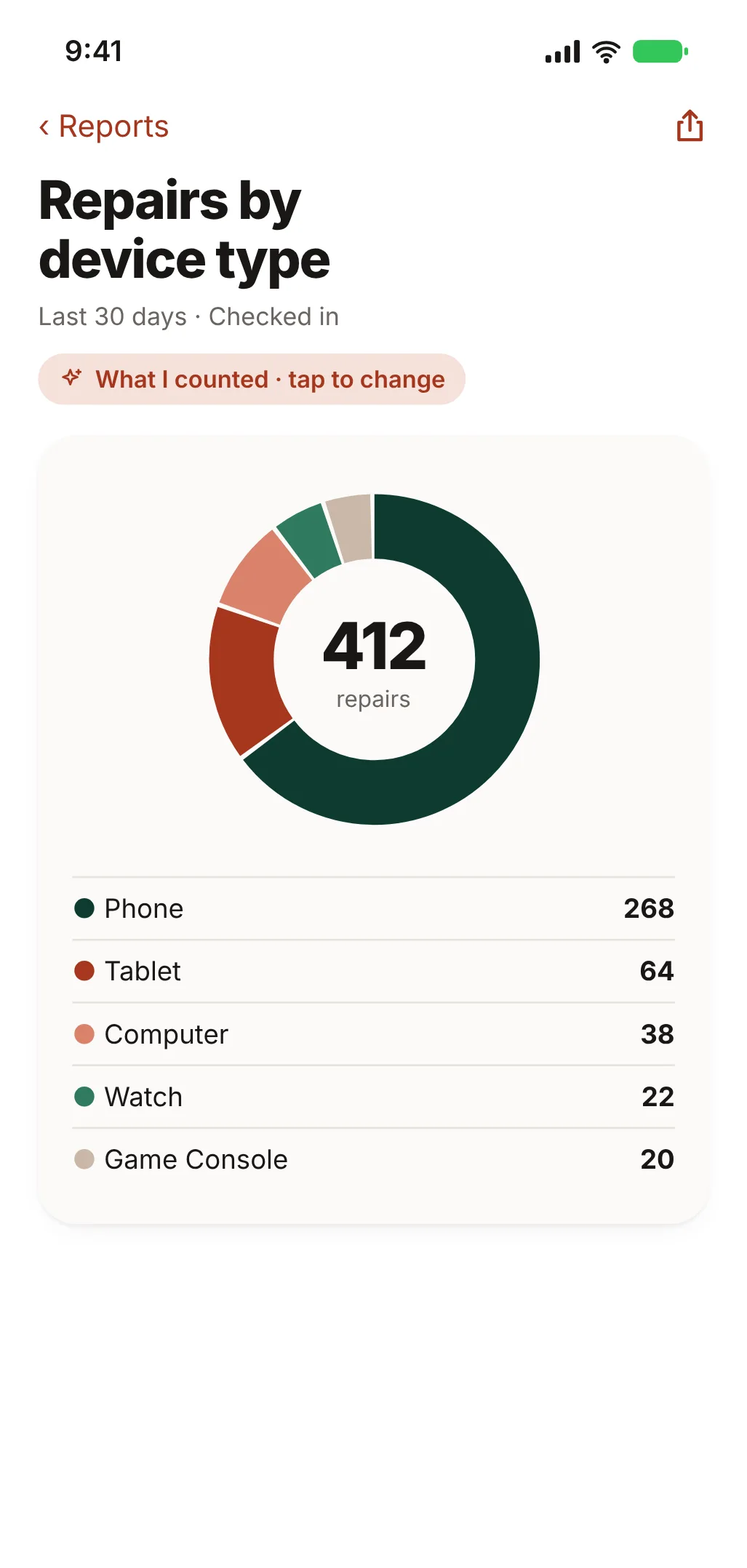
A saved report: repairs by device type, as a donut. Illustration.