
SpotsPOS Employee Manager
Employee timesheets that fill themselves in.
Every clock-in, break and lunch in SpotsPOS Employee Manager becomes a line on a timesheet. You review the hours, fix what needs fixing and see what the pay period adds up to, without typing a single shift.
Free for 14 days. No credit card needed.
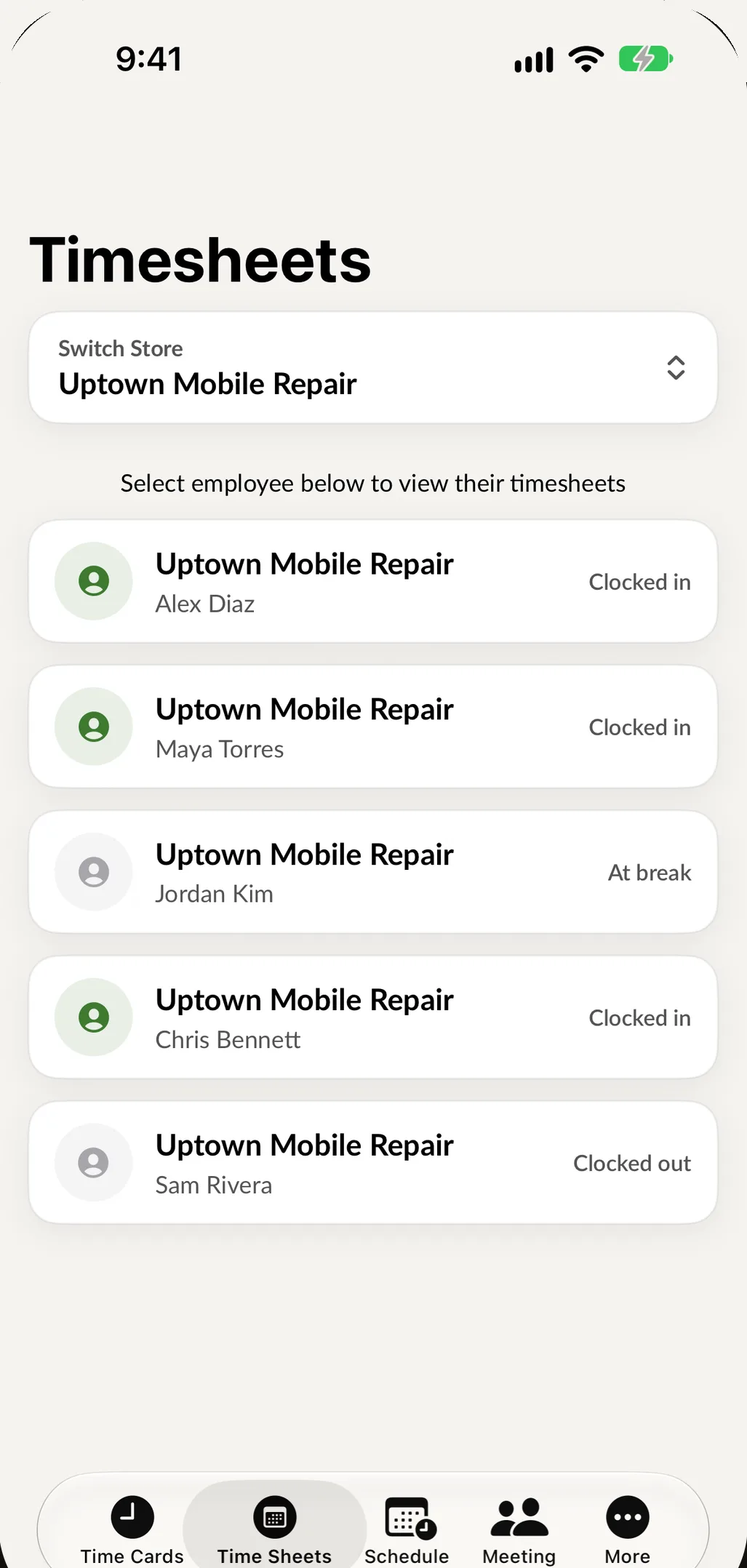
What you get in the employee timesheet app
Timesheets are built from the time clock, so the numbers start out right. Your job is to check them, not to create them.
-
Hours worked, per shift
Each entry shows when the employee clocked in, when they clocked out and how long they worked. Shifts that are still open are marked as not clocked out.
-
By employee and by week
Pick an employee to see their timesheets, then look at the week as a whole instead of adding up days on a calculator.
-
Clock-in details
Open any entry to see its clock-in details, including the location on a map when the employee allowed location at the punch.
-
Notes on a shift
Save a note on a timesheet entry, like why someone stayed late or covered for a coworker, so the reason is there when you review the week.
-
Pay rates and estimated pay
Set an hourly rate or a salary for each employee, and see estimated pay for the period before you run payroll.
-
One store or several
If you have more than one location, switch store at the top of the screen to see that location's timesheets.
Fix a missed punch in seconds.
Someone always forgets to clock out. Instead of finding out on payday, you see the open shift on their timesheet and fix it on the spot.
- Clock someone out from their timesheet
- Edit the in and out date and time of any entry
- Delete an entry that should not be there, with a confirmation first
- Every change updates the hours right away
From clock-in to payroll, step by step
-
Set each person's pay
Open the employee, tap Manage Pay, and enter an hourly rate or turn on paid by salary and enter the salary amount.
-
Decide whether breaks are paid
Two switches set whether the pay covers the employee's break and whether it covers their lunch. Set them once per person.
-
Let the week run
Your team clocks in and out, takes breaks and lunch on the time clock. Each punch lands on their timesheet as it happens.
-
Review before payday
Open Timesheets, choose an employee and look over the week. Fix a missed punch, add a note and check estimated pay for the period.
Why small shops need an employee timesheet app
In a five person shop, the owner usually is the payroll department. That means a Sunday night with a stack of paper sheets or a group text asking "what time did you leave Thursday?" Each guess costs money. Round up fifteen minutes a day for four people and you have paid for hours nobody worked.
An employee timesheet app fixes the source of the problem. Hours are recorded by the person who worked them, at the moment they worked them, and the math is done for you. You still make the final call, and every number has a clock-in behind it that you can open and check.
How hourly and salaried pay work
Employee Manager lets you set pay one person at a time.
- Hourly employees: enter an hourly rate. Their hours worked and estimated pay come from their timesheets.
- Salaried employees: turn on paid by salary and enter the salary amount. They can still clock in, so you know who was in the shop.
- Breaks and lunch: choose whether the pay covers each employee's break and lunch. Because breaks and lunch are recorded separately from the shift, a paid break and an unpaid lunch are both handled the way you set them.
Hours you can stand behind
If an employee ever questions a paycheck, you have more than a number. You have the time they clocked in, the time they clocked out, any note saved on that shift, and where the clock-in happened if they allowed location. Edits go through a confirmation step, so changes are deliberate.
What a weekly review looks like
Monday morning, open Timesheets and pick your first employee. Scan the week. One shift says "Has not clocked out", so you open it and set the out time to when the shop closed. Another shift ran long, and the note says they stayed to finish a repair for a customer pickup. Everything else looks right. Move to the next person. For a small team, it takes minutes.
If you run several locations, switch store to review each one. To see sales and repairs by person, use the employee reports in reports. Employee Manager is included with SpotsPOS Pro, so check pricing for the full plan.
Timesheet questions owners ask
How do I track employee hours without paper timesheets?
Have your team clock in and out with SpotsPOS Employee Manager on their phone or the shop's iPad. Each punch becomes a timesheet entry automatically, with hours worked already calculated, so there is nothing to copy over.
Can I edit a timesheet if an employee forgets to clock out?
Yes. Open their timesheet and either clock them out or edit the in and out times. You can also delete an entry that should not be there. Each change asks you to confirm first.
Does it calculate pay for hourly and salaried employees?
You can set an hourly rate or a salary for each employee and see estimated pay for the period. You also choose whether breaks and lunch are paid time.
Can employees see their own timesheets?
Yes. The Employee Manager app has a Time Sheet tab next to the time clock, so each person can check their own hours.
How much does the timesheet app cost?
Timesheets are part of SpotsPOS Employee Manager, included with the SpotsPOS Pro plan at $89.99 a month for up to 10 employees, with a 14 day free trial. See pricing for details.
Close the week without a spreadsheet.
Start a trial of SpotsPOS Pro and let the timesheets fill themselves in.
Included with SpotsPOS Pro. Free for 14 days.