
What to Do When Your POS Goes Down: A Plan for Repair Shops
What to do when your repair shop's POS or internet goes down: find the cause in a minute, keep the counter moving, and catch up cleanly once you are back online.
When your point of sale goes down, first find out whether the problem is your internet, your device or the service itself, which takes about a minute. Then keep the counter moving with what still works: look up repairs and prices from saved data, write new check-ins on paper, and hold payments until you can complete them properly. Once you are back online, enter what you wrote down, close the register and note what happened. A plan written down before the bad day turns an outage into a slow hour instead of a lost one.
Step 1: Find the cause in a minute
Most "the POS is down" moments are not the POS. Check in this order:
- Is it your internet? Open any website on the same device. If nothing loads, the problem is your connection, not your software.
- Is it one device? Try a second iPhone or iPad. If the other one works, restart the first and check its Wi-Fi.
- Is it the service? Open your software's status page. For SpotsPOS, the status page checks the service behind the apps, the Web Portal and the website every minute.
Knowing which of the three it is tells you what to do next: switch connections, switch devices, or wait it out with the steps below.
Step 2: Get back online if you can
If the problem is your internet, the fastest fix is usually a second connection:
- A phone hotspot. Turn on Personal Hotspot on a phone with a good signal and connect the counter iPad to it. For most shops this is the backup that is already in someone's pocket.
- Restart the router once. Unplug it, wait 30 seconds, plug it back in. If it is not back in five minutes, stop and use the hotspot.
- Call your provider while the hotspot carries the counter.
Write the hotspot steps on a card next to the register, so anyone on shift can do it.
Step 3: Keep the counter moving with what still works
Even without a connection, most of what customers ask at the counter is a question, not a transaction. "Is my phone ready?" "How much is a screen?" "Do you have a case for this?"
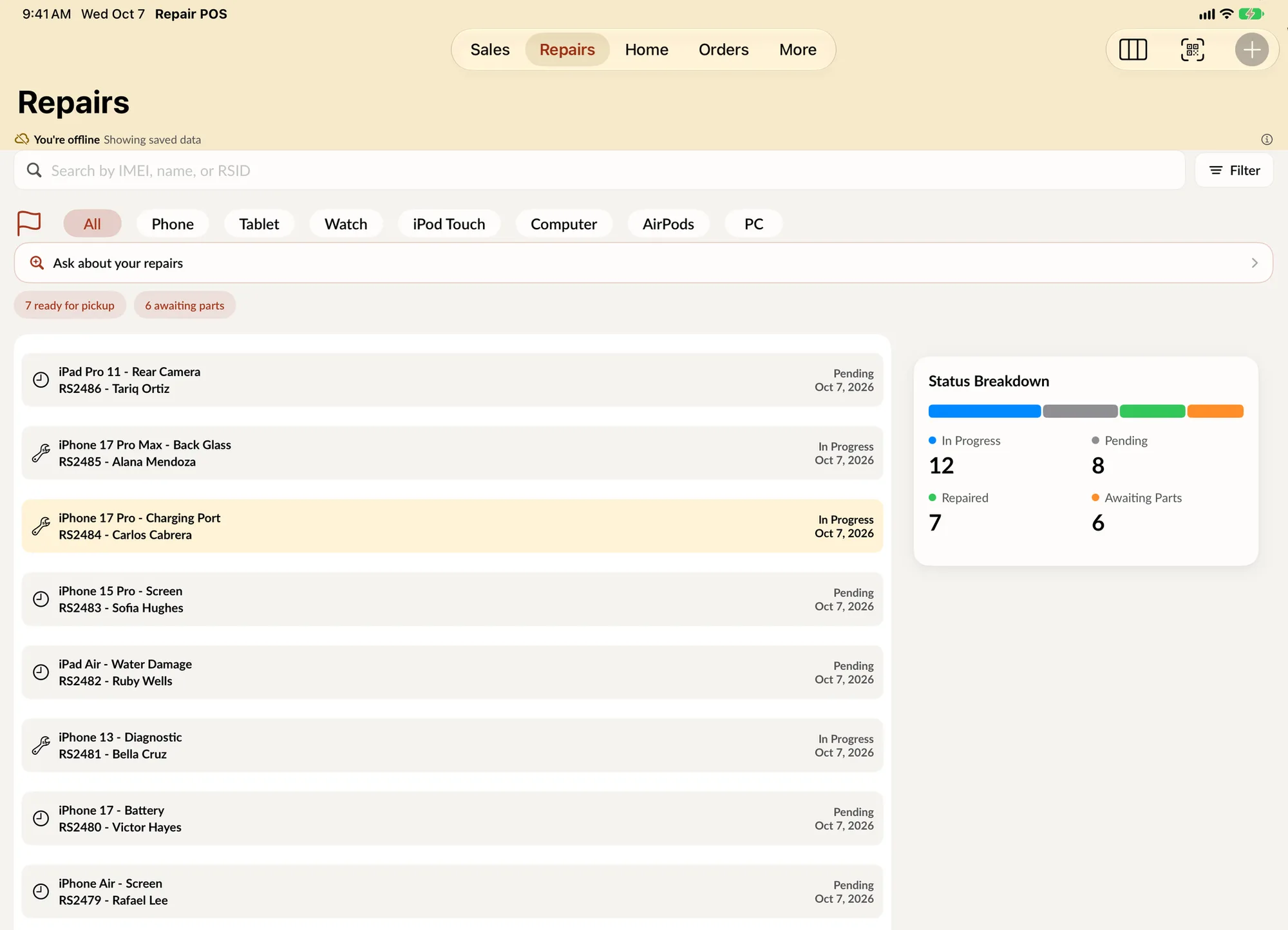
In SpotsPOS Repair, the app shows "You're offline" with "Showing saved data" and keeps working from what is saved on the device. You can still:
- Find a repair and read its details and status, so you can tell a customer where their device stands
- Look up a customer to answer a question or call them back
- Check prices in Inventory to quote a part or an accessory
- Open past sales and orders saved on the device
- Switch employees with their own PIN
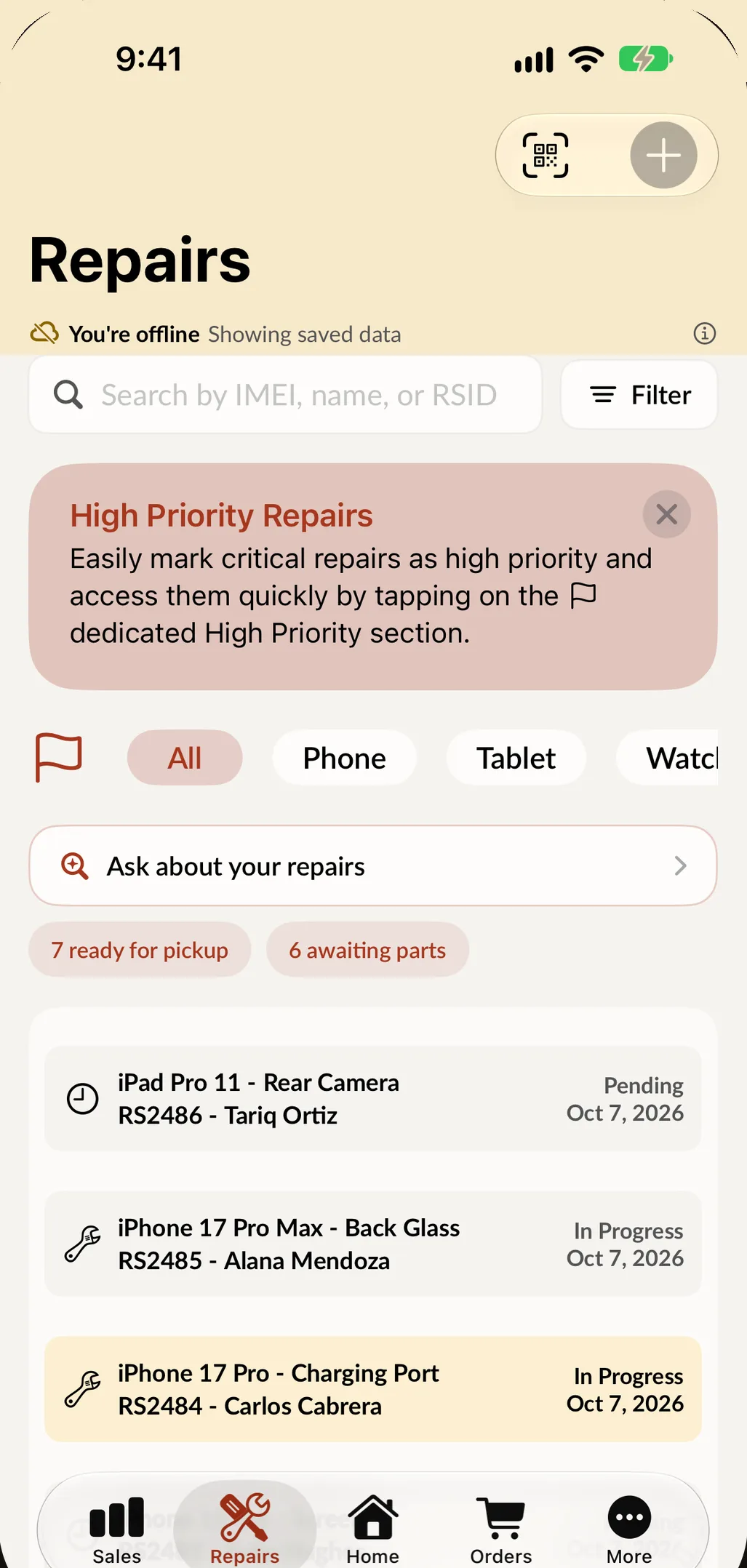
What needs a connection: new sales, new repairs, status changes and closing the register. SpotsPOS says so plainly when something could not be saved, instead of letting you think it went through. Read exactly what works and what waits on the offline mode page.
Step 4: Check devices in on paper
A walk-in should never be turned away because the internet is out. Keep a short paper check-in form at the counter for exactly this. It should capture what you would type into a ticket:
- Customer name and phone number
- Device, color, and IMEI or serial number
- The problem in the customer's words
- What works and any visible damage
- Passcode, if the customer is leaving it
- Estimate and promised time
- The customer's signature on your terms
Number the paper forms and tape the form to the device or put both in the same bag, so nothing gets mixed up. Our repair ticket checklist has the full list of fields and a printable version.
Step 5: Handle payments carefully
Payments are where outages cause real damage, because a payment can start and not finish.
- Do not run the same card twice because the screen froze. In SpotsPOS, if a card payment could not be confirmed, the app asks you to check your connection and make sure the card was not already charged before you try again.
- Hold the payment when you can. For a repair pickup, it is often easier to let a regular customer pay when you are back online, or take cash and record it as soon as you can.
- Write down every cash sale taken while offline: time, items, amount and who took it.
Step 6: Catch up when you are back online
When the connection returns, take ten minutes before the next customer:
- Enter the paper check-ins as repair tickets, with the photos and signature if you can collect them again, and write the ticket number on the paper form.
- Record the cash sales you wrote down.
- Close the register if the outage crossed closing time. In SpotsPOS, End of Day reads the totals from the server, so it waits for the connection and then closes normally.
- Note what happened: when it started, how long it lasted, what worked and what did not. That note is how next time goes better.
Write your downtime plan before you need it
Print this and keep it at the counter:
- Check: your internet, the device, then the status page.
- Switch to the backup hotspot. The steps are on the card by the register.
- Answer questions from saved data: repairs, customers, prices.
- Check new devices in on numbered paper forms.
- Never charge a card twice. Hold payments or record cash sales on paper.
- Back online: enter paper tickets, record cash, close the register, write a note.
How to choose software that goes down less
The best downtime plan is one you rarely use. When you compare systems, ask how updates are released, whether there is a public status page, what works offline, and whether you can keep working on another device if one breaks. We answer each of those in writing on our page about reliable repair shop software.
Frequently asked questions
What should I do when my POS stops working?
Check whether the problem is your internet, the device or the service. Switch to a phone hotspot if your internet is down, answer customers from saved data, check devices in on paper, and hold payments until you can complete them. Catch up as soon as you are back online.
Can I use SpotsPOS without internet?
You can look things up. Repairs, customers, sales, orders and inventory saved on the device stay readable. New sales, new repairs and changes need a connection, and the app tells you clearly when something could not be saved.
How do I know if SpotsPOS is down?
Open the status page. It checks the service behind the apps, the Web Portal and the website every minute.
What if a card payment freezes during an outage?
Do not run the card again until you know whether the first payment went through. SpotsPOS tells you when a payment could not be confirmed and asks you to check before trying again.
What is the best backup internet for a small shop?
A phone hotspot is the simplest and is usually already in someone's pocket. Write the steps on a card at the register so anyone on shift can switch over.